
Foscam
NVR Monitor Shows No Signal: HDMI, Resolution and Display Checks
A blank CCTV monitor is not the same as missing recordings. Check the display path in order, preserve working remote access and prove the recorder’s current state.
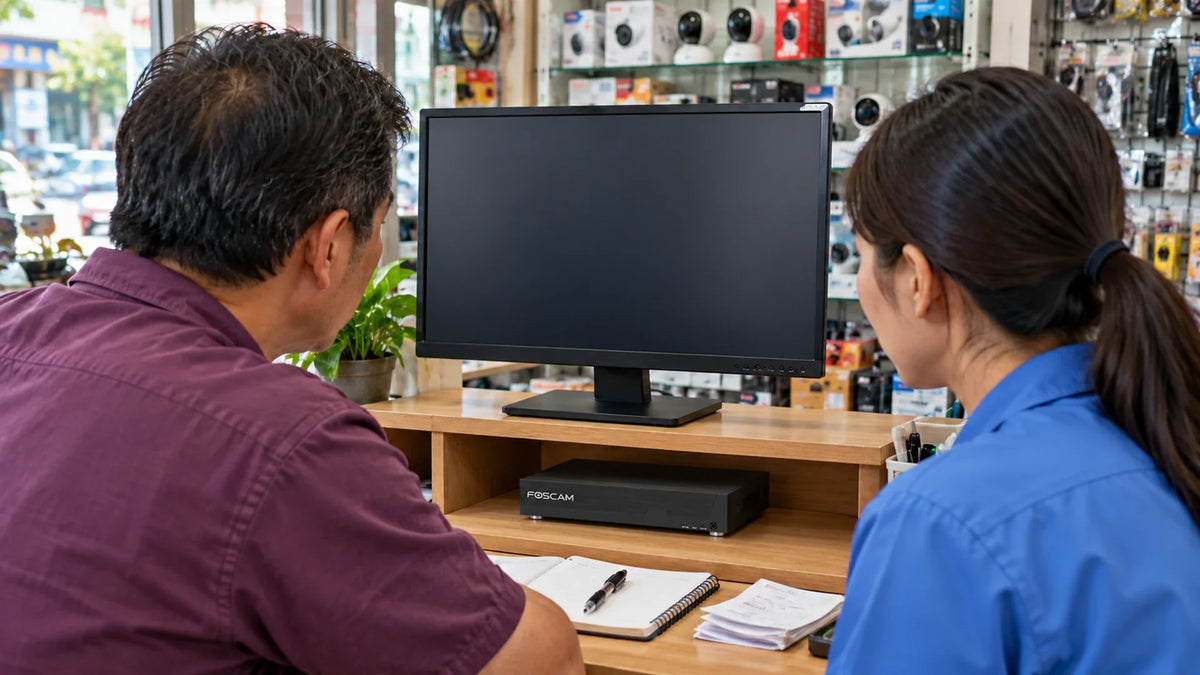
If an NVR monitor shows “No signal”, start with the monitor input, display cable and supported output resolution. Check whether the recorder is still reachable and recording through a working authorised connection. A blank local display alone does not prove the cameras or hard drive have failed.
The shop opens, the CCTV monitor is black and someone suggests resetting the recorder. Before doing that, find out what is missing: the monitor’s signal, the recorder’s menu, one camera image or the recordings themselves.
Those symptoms lead to different tests. A replacement monitor, loose cable or changed display setting can interrupt the picture without explaining the state of the recording system.
Identify Which Screen Failure You Have
| What you see | What it tells you to test |
|---|---|
| Monitor menu will not appear | Start with monitor power and its own controls. |
| “No signal” appears; no NVR menu | Trace the selected input, display cable and recorder output. |
| NVR menu appears; one camera tile is blank | The monitor is receiving a signal. Investigate that camera or stream. |
| Live view works; playback is missing | Check recording, time selection and storage status separately. |
| Remote viewing works; local monitor is blank | Use the working connection as evidence while checking the local display path. |
Write down what still works before unplugging anything. A working remote session can be valuable for checking status while the local display is unavailable. Keep it private and use an authorised account; changing remote-access settings is not needed just to test an HDMI lead.
Trace the Display Path Before the Camera Path
Display Signal and Recording Status
A blank monitor alone does not establish whether footage is being saved.
01 Local monitor path
Can the display receive the mode?Prove the input and a short direct cable path, then check a supported output resolution.
02 Recording path
Is recent footage actually present?Use a working authorised connection to inspect status and recent recordings, then verify playback.
Follow the physical connection from the recorder’s display output to the selected monitor input. An Ethernet cable carries the network connection; it does not make an ordinary monitor display the NVR interface. Likewise, an HDMI input on another device is not interchangeable with an HDMI output.
For a simple example, a monitor may have HDMI 1 and HDMI 2. If the recorder’s cable is in HDMI 2 while the monitor is set to HDMI 1, replacing cameras will not change the result. Label the working input after you confirm it.
If a splitter, extender, adapter or AV receiver sits between the two devices, record it and temporarily test a supported direct connection. Reintroduce the extra equipment one part at a time.
Test the Input and Cable in a Short Sequence
- Check that the monitor can display its own menu and select the input matching the connected socket.
- Reseat the display cable at both ends without disturbing the camera network connections.
- Try a short, known-good cable on a direct connection.
- Test another compatible display if one is available, noting its supported modes.
- If the recorder becomes visible, record its output setting before changing it.
A cable that worked with a different device is useful evidence, but the complete mode still matters. A long run or adapter may behave differently at another resolution. Keep the first test short and simple so a result is easier to interpret.
Do not repeatedly pull power from the recorder during an active recording investigation. If a restart is necessary, use the documented shutdown and restart method.
Match the Output Resolution to the Display
The Foscam FN9108HE provides HDMI and VGA display outputs. Its published display modes include 1920 × 1080 and 3840 × 2160. Do not assume every listed mode is available over both outputs. Choose a mode the complete connected display path supports; a monitor’s screen size does not establish its input capability.
Camera recording resolution and monitor output resolution are different specifications. The FN9108HE’s up-to-5MP-per-channel recording specification is not changed by selecting a 4K display output.
If an output change makes the screen disappear, use a compatible display or a documented recovery route for that recorder. Do not guess a blind sequence of menu clicks or reset storage. When you regain access, record a working mode before adding an extender or switching to a higher resolution.

Check the recorder’s display outputs and supported modes separately from camera resolution, network access and recording status.
When the Menu Works but a Camera Is Missing
Once the NVR menu is visible, a black camera tile is a different fault from “No signal” on the monitor. Check whether the missing camera is online, whether its stream is supported and whether the issue affects live view, playback or both.
Use the PoE camera offline guide when the camera disconnects. Use the CCTV playback and export guide when the stream is present but the saved or exported picture is wrong.
A useful support note is “NVR menu visible, camera 3 missing locally, remote camera view also unavailable”, rather than “CCTV broken”. It narrows the search without changing recording quality or network settings unnecessarily.
Prove the System After the Picture Returns
Confirm live view, a recent recording and a short playback check before closing the job. A visible monitor is only one part of a working surveillance system. Check the expected channels and time range, and record the display mode and input that now work.
If footage is absent, investigate storage status, schedules and clock alignment separately. Do not format a drive to repair a display fault. If the system has both unstable power and a blank screen, include the power supply and recorder status in the investigation before declaring the HDMI cable responsible.
For a new installation, compare the display requirements alongside the recorder specification. Plan the local monitor, cable route and remote viewing arrangement together.
Frequently Asked Questions
Does “No signal” mean the NVR has stopped recording?
Not by itself. It describes the monitor’s input state. Check current recorder status and recent playback through a working authorised connection before drawing a conclusion about recording.
Should I reset the NVR to repair a blank monitor?
Begin with monitor power, selected input, cable and supported output mode. A reset can remove useful configuration and does not repair a wrong input or damaged cable.
Does a 4K monitor output mean every camera records in 4K?
No. Display output, camera input and recording capabilities are separate specifications. Check the exact recorder and camera combination.
Why can I see the NVR menu but not one camera?
The display path is working. Investigate the affected camera’s connection, power, stream compatibility and status rather than treating it as a monitor “No signal” fault.
Can I use an adapter or long HDMI cable?
Only when the complete connection supports the required signal and direction. Prove a short direct connection first, then add the adapter or long run and retest.
What should I check after the monitor works again?
Confirm the expected live channels, current time, a recent recording and playback. Record the working monitor input, cable arrangement and output resolution.


