
Recording Quality
CCTV Playback Quality: Fix Blurry Recordings And Exports
Live CCTV looks sharp, but yesterday’s playback or the exported clip does not. Find where detail is lost before changing cameras, recording settings or storage.
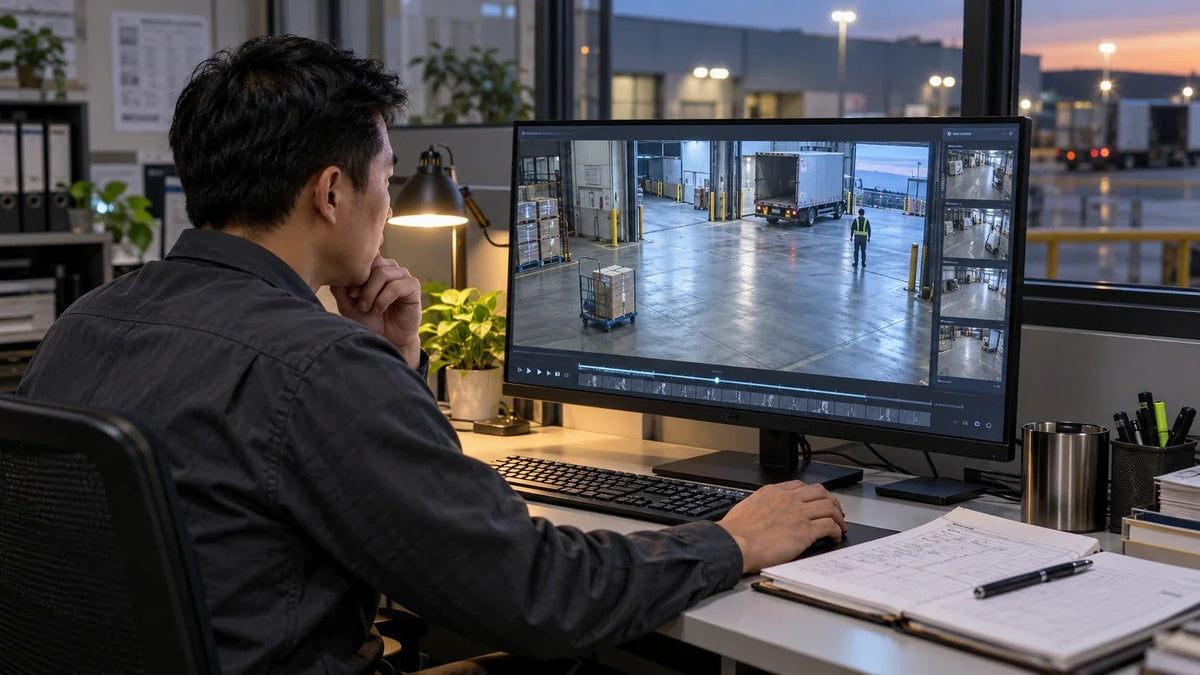
If CCTV playback is blurry, compare the camera stream, the saved recording and the exported file separately. Use the same camera and time range. Detail can be lost at any of those stages, and changing a live-view setting will not repair footage already recorded.
A delivery goes missing. The live camera picture looks clear enough, but yesterday’s playback turns a face into a soft patch. The clip sent to a colleague looks worse again. Before replacing the camera, find out which version of the picture everyone is actually viewing.
The useful question is not simply “Is this a 4MP camera?” It is where the required detail disappeared. A camera’s resolution, its recorded profile and a small preview on a phone can describe three different images.
Compare The Same Camera, Event And Viewing Size
Choose one short incident with an obvious detail, such as a parcel label or a person entering a doorway. Note the channel, date and time. Compare the recorder’s local playback, the remote app and a downloaded file from that exact interval.
Keep the viewing size sensible. A small phone preview can look tidy while hiding missing detail; enlarging it across a large monitor exposes the limitation. Conversely, stretching a low-resolution remote preview does not prove that the recorder’s original file is equally poor.
| What You Find | Check Next |
|---|---|
| Local playback is clear; remote playback is soft | Selected remote stream, app quality setting, connection and client decoding. |
| Local and remote playback are both poor | Actual recording profile, source image, exposure and focus. |
| Recorder playback is clear; exported file is poor | Export quality, transcoding and whether the original file was downloaded. |
| Downloaded file is clear; shared copy is poor | Transfer method, messaging compression and the recipient’s preview. |
If the camera is disconnecting rather than producing a consistently soft picture, start with power, cabling and camera discovery. Missing frames and a low-detail recording need different investigations.
Three Versions Of The Same Scene
The stream selected for the viewer. A remote app may request a lighter stream to reduce network demand.
The profile the recorder actually stores, including its resolution, frame rate and compression settings.
The clip delivered to another person. Export options and later sharing can change its quality.
These are separate checks, not a promise that every system saves the highest available stream. In VIGI, main and substreams can have independent parameters. Mainstream recording and substream remote viewing are common arrangements, but inspect the configured values rather than relying on the stream name.
Check What The Recorder Actually Saves
Review both the camera’s stream settings and the recorder’s channel configuration. Note the resolution, frame rate, codec and bitrate control used for recording. Check whether continuous, event and scheduled recording use the same profile in the installed system.
Then record a fresh sample and inspect that file. A settings screen showing a higher resolution is useful evidence of configuration; a newly saved clip is evidence of the result. Keep the original values so an unsuccessful change can be reversed.
Also compare the age of the clips. Where a platform supports different retention quality or separate high- and low-quality copies, older footage may follow a different policy. Check what remains available for the time range you need before assuming the camera has deteriorated.
More Megapixels Need Enough Recording Detail
Resolution is only one part of the picture. A busy entrance, moving foliage or rain can be harder to compress than an empty corridor. A restrictive bitrate ceiling may leave visible blocks or smearing when the scene becomes demanding.
Variable bitrate can change with the scene. Its configured maximum is not a prediction that the camera uses that rate every second. Equally, increasing resolution or frame rate while keeping a tight limit may not produce the improvement expected.
There is no single bitrate that is correct for every camera. Keep the codec, scene, motion and required detail together when testing. Change one relevant setting, review a representative clip and assess storage and network demand before applying it across all channels.
Night Motion, Focus And Lighting Can Be The Real Limit
A stationary sign may look sharp while a walking face blurs. In low light, a longer exposure can brighten the image while allowing a moving subject to smear. Raising the bitrate cannot reverse motion blur already captured by the sensor.

Check focus at the distance that matters, the amount of the frame occupied by the subject, lens cleanliness and reflections near infrared lighting. An image framed to cover an entire warehouse may not provide the same identification detail as a tighter view of its entrance.
Review daytime and night-time samples separately. For a loading bay, include a person walking through the target area rather than evaluating only a still scene. Agree what must be recognisable before adjusting the lens or proposing different hardware.
Export The Clip, Then Check The File You Send
Use the recorder or management application’s clip-export function and inspect its quality options. Some tools offer an original-format export alongside a more compatible transcoded version. The names and behaviour depend on the application version.
Recording the screen while playback runs is a different operation. It can capture a small preview, overlays and another round of compression. A mobile download may also remain inside the app until it is explicitly exported to the phone’s storage.
- Export the correct channel and interval, keeping the original file.
- Open it locally and inspect the required detail at a sensible size.
- Transfer the file using a method that preserves the original, rather than relying on a chat preview.
- Ask the recipient to check the downloaded file. If necessary, test another compatible player or device.
For an incident handover, keep the untouched export and its identifying details. Make a convenient viewing copy separately if one is needed.
Balance Recording Quality With Retention
Once a new sample is good enough, calculate the storage impact. Higher average recording rates can reduce the number of days retained on the same usable capacity. More disks do not automatically improve the camera’s capture quality.
Use the NVR storage calculator with a realistic average bitrate, recording hours and channel count. Then use the RAID calculator to distinguish raw disk capacity from usable array capacity. The 30-day NVR storage guide explains worked camera-count examples.
Repeat the check after changes to recording profiles or camera counts. Plan for the required retention and leave operating headroom instead of treating an empty-scene test as the whole month’s demand.
Choose The Camera Around The Detail Required
A motorised varifocal lens can help frame a specific entrance more tightly. For example, the TP-Link InSight S445ZI combines a 4MP sensor with a motorised varifocal lens. Its suitability still depends on distance, lighting, mounting position and the scene you need to record.

Upgrade hardware when the existing camera cannot deliver the required view or capture performance. A recorder profile, poor export or unsuitable exposure should be corrected before a replacement is expected to solve it.
The Next Useful Test Takes One Short Clip
Start with the same event at the recorder, in the app and in the exported file. If only the remote preview is soft, fix that viewing path. If the saved source is poor, work back through its profile, focus, lighting and motion. If the original is clear but the shared copy is not, fix the handover.
For a system review, prepare the camera and recorder models, firmware, affected channel, stream settings and a representative original clip with appropriate permission. Those details give a Support Specialist a much better starting point than the camera’s megapixel rating alone.
Frequently Asked Questions
Why is CCTV live view clear but playback blurry?
The live viewer and recorder may use different stream profiles. Compare the same camera and event, inspect the stream actually saved by the recorder, and then check playback quality and export settings. A sharper live picture today does not establish the quality of yesterday’s recording.
Does switching the app to HD improve the saved recording?
It can change what the viewer requests, but it does not add detail to an existing recording. Confirm the recorder’s saved resolution and profile separately, then make and review a new sample after any approved change.
Will a higher bitrate fix faces or number plates at night?
Only if compression is the limiting factor. Slow exposure, subject movement, poor lighting, focus and an unsuitable viewing angle can still remove usable detail. Check a moving subject under the actual night conditions.
Can a larger hard drive make CCTV footage clearer?
Capacity does not repair a blurry clip. More storage may support a higher-quality recording plan or longer retention, but first identify the capture or recording setting that limits detail and confirm the recorder’s supported configuration.
Why does an exported clip look worse after sending it?
A messaging service, screen recording or transcoding export may reduce quality. Keep the original exported file and compare it locally before and after transfer. Confirm the recipient is opening that file rather than a low-resolution preview.
Can increasing resolution recover an old blurry recording?
No. New settings affect future footage. Enlarging a low-detail frame does not restore information that the camera or recorder did not capture. Preserve the original clip and test improvements on newly recorded footage.


