
PoE
PoE Camera Keeps Going Offline? Check Power, Cabling And Discovery
A missing camera feed does not always mean a failed camera. Follow a practical power, cable and network check before replacing equipment or losing more footage.
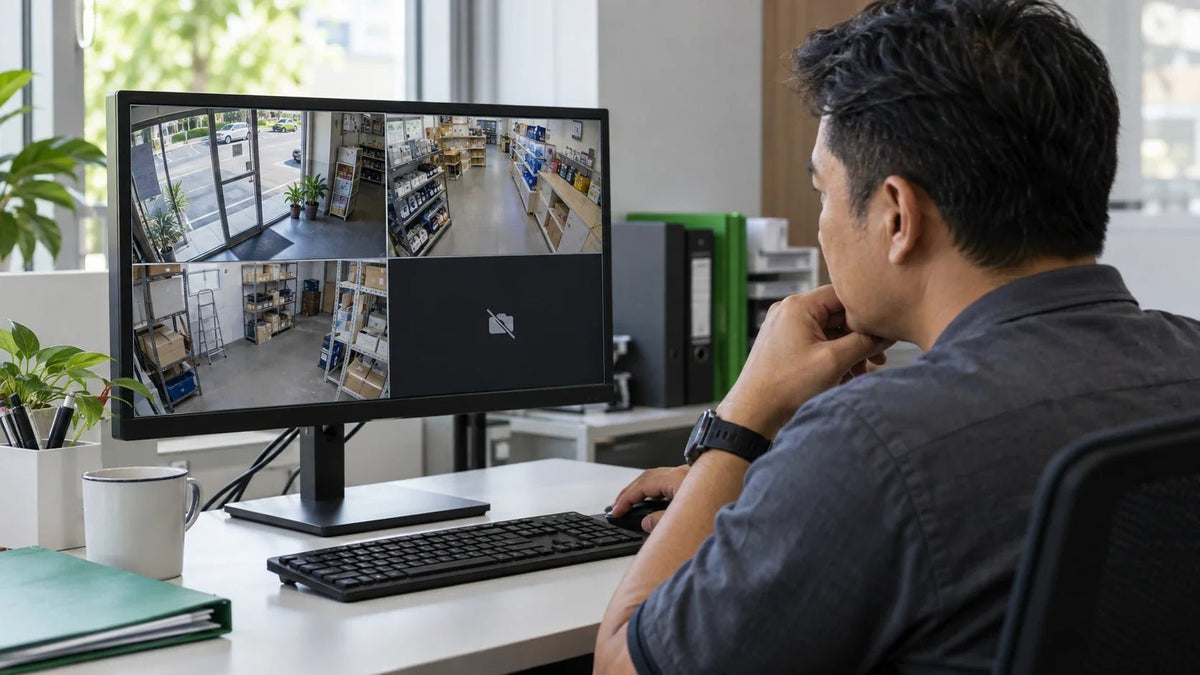
If a PoE camera keeps going offline, check power and the physical connection before resetting it. Test a short, known-working cable and a compatible PoE port. If the camera stays powered but cannot be found, investigate its IP address, network segment and NVR connection instead.
The shop opens normally, but one camera tile is black. A restart brings it back until the next evening. Or a camera works on the bench, disappears after installation and is immediately blamed for being unreliable.
The quickest route to a lasting fix is to find what disappears: power, the Ethernet link, the video stream or remote access. Each points to a different part of the system. Replacing the camera first can leave the original fault untouched.
First, Identify What Has Gone Offline
| What You Notice | Check First | What The Check Separates |
|---|---|---|
| The camera appears to restart repeatedly | PoE status, power events and the physical connection. | A power interruption from a video-only problem. |
| The port shows a link, but the NVR cannot add the camera | Camera address, discovery network and credentials. | A reachable, correctly configured camera from one on the wrong network. |
| Several cameras fail at the same time | Their shared switch, uplink, power supply and PoE budget. | A common dependency from several independent camera faults. |
| Local playback works, but the phone app fails away from the site | Internet connectivity, gateway/DNS settings and the remote-access service. | A remote-viewing problem from an interruption to local recording. |
Write down the time, affected channels and exact status message before rebooting. Check whether recording continued during the incident. A blank phone screen and a gap in the recorder’s timeline are different problems with different consequences.
Check The Power Path Before The App
PoE means Power over Ethernet: the cable carries power and network data. A normal network socket does not automatically provide PoE, and a PoE-labelled device still needs a compatible power source.
Match the camera’s specified IEEE PoE standard to the switch, injector or recorder port. Check that PoE is enabled on that particular port and that its power limit is suitable. Where the management interface provides it, look at power delivered, fault events and port restarts. Also check for a power schedule that turns a port off outside working hours.
A light on the switch is useful evidence, but it is not the whole test. Record whether the camera completes its normal startup and whether the link remains stable. LED behaviour differs by model, so use the correct device guide rather than expecting every camera to show the same light.
For the wider standards and compatibility differences, see PoE, PoE+ and PoE++ explained. Avoid choosing an injector solely because the connector fits.
Try A Short Cable And One Known-Working Port

- Label the existing connection. Record the camera, port and cable route before disconnecting it.
- Inspect both ends. Look for loose plugs, damaged clips, bent contacts, strain and moisture around outdoor connections. Follow the installation guide for the waterproof connector assembly.
- Test a short lead. Bring the camera to a suitable bench or test point with a known-working cable and a compatible PoE source.
- Change one item at a time. Keep the camera and cable constant while trying another correctly configured port, then compare the result.
- Retest the installed path. If the short connection works, investigate the permanent cable, patch panel and couplers before blaming the camera.
For a conventional copper Ethernet channel, plan within the normal 100 m limit, including patch leads. Special long-range switch modes have their own limits and trade-offs; they do not make every cable run suitable. A cable-category marking alone does not prove the quality of its installation.
On a managed switch, also review whether the port is administratively disabled, assigned to the intended network and negotiating as expected. A cable tester or qualified cable test can resolve faults that are not visible on the outside of a plug.
Enough Ports Does Not Mean Enough Power
A switch has both a per-port capability and a shared PoE budget. Check both. Eight suitable-looking sockets do not mean that all eight can supply every attached device at its maximum demand simultaneously.
The InSight S445ZI and S345ZI specifications list up to 12 W each via PoE. The arithmetic below is a camera-load starting point for these models, not a complete switch-sizing result.
| Camera Count | Combined Listed Camera Maximum | What Still Needs Allowance |
|---|---|---|
| 4 cameras | 4 × 12 W = 48 W | Cable losses, the switch’s power-allocation method and other PoE devices. |
| 8 cameras | 8 × 12 W = 96 W | The same allowances, plus practical expansion capacity. |
An eight-port switch with a 65 W PoE budget cannot cover a 96 W camera load. Even where the arithmetic appears to fit, confirm the actual switch’s allocation rules and available budget. An access point, intercom or other PoE device connected later also needs to be included.
Do not size only from a quiet daytime reading. Maximum demand and the installed power path matter. If several cameras disappear together, compare the timing with changes in shared load before replacing several cameras.
Powered But Missing? Check The Network It Is On
A discovery tool normally searches its local network segment. The same building, same internet connection or same WiFi name does not establish that the laptop and camera are on the same subnet. A guest network, VPN or surveillance VLAN can change what is discoverable.
Check the camera’s current address through the appropriate discovery tool, DHCP client list or recorder. Confirm the subnet mask and intended gateway. Duplicate addresses can cause intermittent connections; use a documented DHCP reservation or a planned static address outside the DHCP pool.
Follow The Cable To The Right Network
Camera↔PoE Switch↔NVR / LAN
The switch supplies camera power. The camera and recorder need a valid data path.Camera↔NVR PoE Port↔NVR LAN
A supported isolated camera network can be separate from the office LAN.On supported VIGI PoE recorders, Network Isolation separates built-in PoE ports from the main LAN. Cameras can still record and appear on the recorder while a laptop on the office LAN cannot reach them directly. The default isolated IPv4 range is 192.168.253.x, but the configured site range may differ.
This VIGI isolation feature uses cameras added through the TP-Link Protocol. Check the recorder model, configuration and firmware rather than assuming that every NVR or third-party camera behaves identically. Moving a camera from an NVR port to an external switch can also require an addressing change.
Keep the intended isolation in place while diagnosing access. Have the network administrator confirm the required route and rules rather than broadly opening the camera network to make discovery easier.
Found The Camera, But Still No Video?
Once the camera is reachable, inspect its channel status. A changed camera password can leave the recorder using old credentials. A third-party camera may need initial activation and ONVIF enabled before it can be added.
Check the selected protocol, service port and supported stream settings. A successful login does not establish that every codec or advanced event feature works with the recorder. ONVIF interoperability depends on matching profiles and implementation; a working video stream does not guarantee that all AI analytics transfer between brands.
If local live view and recording are stable but remote viewing fails, troubleshoot that remote path separately. Check the site’s internet connection and the recorder’s network settings before touching a functioning camera cable.
Why Does It Disconnect Only After Dark?

Night-only failure deserves a timed check. Look at the camera’s illuminator transition, the shared PoE readings and any switch schedule at the same moment. A marginal power path is one possibility, not a conclusion that follows automatically from darkness.
Compare whether the camera restarts, the Ethernet link drops or only the picture changes. Repeat a controlled short-cable test under the relevant operating conditions. If the camera remains online but produces a dark or reflective image, investigate night-mode settings and lighting rather than treating it as a network outage.
Firmware may also be relevant, but match the hardware version and purchase region to the release notes. Save the configuration first and check whether the upgrade can be reversed. Do not interrupt power during an update or use an update as a substitute for fixing an unstable power supply.
When A Replacement Camera Makes Sense
A new camera is justified when testing identifies a hardware fault, or when the required coverage and image detail have changed. It will not repair an unsuitable PoE supply or an incorrectly addressed network.


Both list IEEE 802.3af/at PoE, up to 12 W PoE consumption, IR illumination up to 60 m, and IP67/IK10 protection. These specifications do not replace a correct waterproof connection or a verified recording plan. Choose the view first, then confirm the complete installation.
Once connectivity is reliable, check retention using the NVR storage calculator and the 30-day camera-storage worked examples. More disk capacity does not restore footage that was never received.
Frequently Asked Questions
Why Does My PoE Camera Keep Going Offline?
Start by separating a camera restart from a lost video connection. Check the port’s power and link status, then test a short known-working cable and compatible PoE port. If power remains stable, inspect addressing, discovery, credentials and the recorder’s channel status.
Why Does The Camera Work In Daylight But Disconnect At Night?
The timing is a useful clue, not a diagnosis. Compare the failure with the camera’s night-mode change, PoE readings and any switch power schedule. A marginal power path may become apparent as operating conditions change, but verify it with logs and a controlled cable or port test before replacing hardware.
Can An Ethernet Cable Carry Data But Still Cause A PoE Problem?
A working link indicator does not prove that a cable and its terminations will deliver reliable power under the required load. Inspect the connectors and test the camera on a short known-working lead. If that works, investigate the installed run and its connections rather than assuming that the camera is faulty.
Why Can The NVR See A Camera That My Laptop Cannot Find?
The camera may be connected to the recorder’s built-in PoE network. On supported VIGI systems, Network Isolation separates those camera ports from the main LAN while the recorder continues displaying and recording them. Check the actual topology and internal subnet before changing camera addresses.
Should I Give Every Camera A Static IP Address?
Each camera needs a unique, reachable address. A DHCP reservation can keep that address consistent while the DHCP server manages it. If you use manual static addresses, plan them outside the DHCP pool and document them. Match the method to the recorder’s internal camera network or the site’s managed surveillance network.
Should I Factory-Reset An Offline Camera?
Keep a reset for a documented recovery step after simpler checks. First save the configuration and useful logs where accessible, confirm the credentials and record the camera’s model and hardware version. A reset can remove addressing, accounts and recording settings without fixing a bad cable or insufficient PoE supply.
Restore The Feed, Then Prove It Stays Reliable
Power first, cable second, addressing third. If the camera is found but video still fails, move to credentials and stream compatibility. If only remote viewing fails, investigate the remote path. This order keeps each test useful.
Before calling the job complete, verify live view and playback across the conditions that previously caused failure, including the night transition where relevant. Keep the model, hardware/firmware version, cable route, PoE source, incident times and test results in one short record.
If the fault remains, discuss the topology and test results with a Support Specialist. A clear fault record helps identify whether the next step is cabling work, switch capacity, a configuration correction or a replacement camera.


