
Travel Router
Hotel WiFi Login Problems: Get Your Travel Router Online Before the VPN
A hotel WiFi name can appear even when the internet session is not authorised. Find the failed stage before resetting a travel router or changing the VPN.
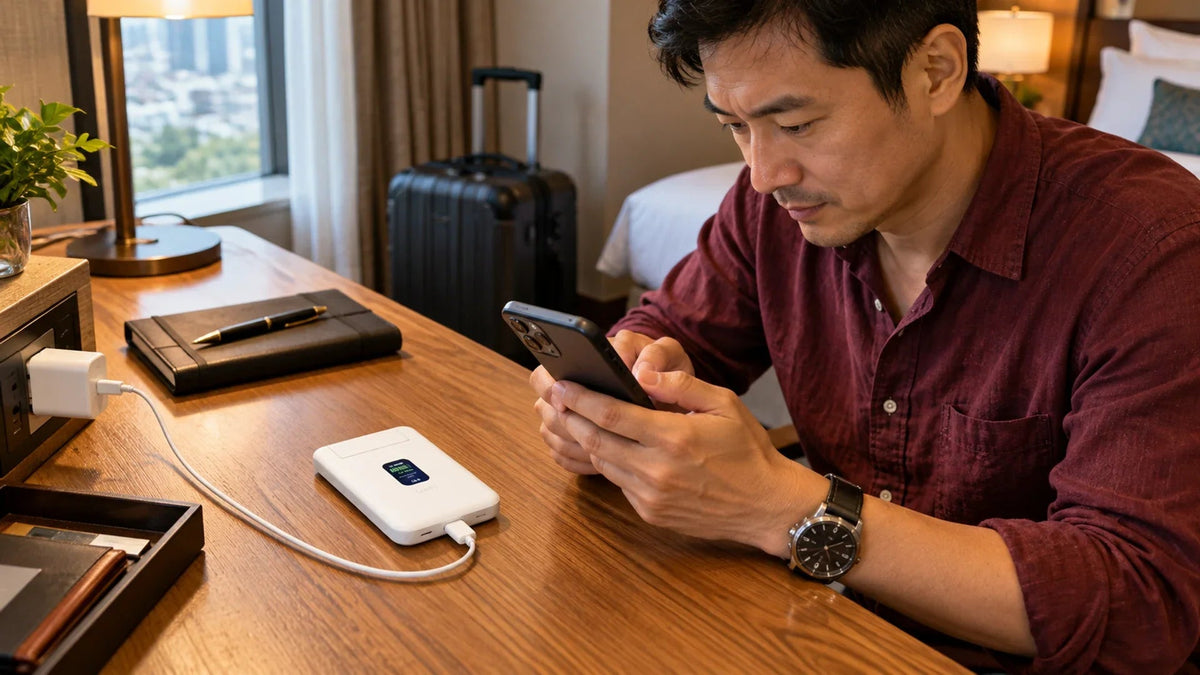
If hotel WiFi connects but the login page will not open, separate three steps: joining the hotel network, completing its captive portal and establishing the VPN. A phone connected to your travel router proves only the local connection. Confirm that the router has joined the correct guest network, finish the venue’s sign-in, then test the work connection.
You unpack, connect the laptop to your familiar travel WiFi and see a full signal. Yet the browser waits, the company VPN retries and the meeting starts in ten minutes. It is tempting to reset everything. That can remove a perfectly good local setup while leaving the hotel login untouched.
The useful question is where access stopped. A UniFi UTR shares an available connection; it does not replace the hotel’s authorisation or create mobile data by itself. The same distinction helps with apartment guest networks, conference venues and temporary workspaces.
Find the Failed Stage Before Changing Settings
Connected Is Only the First Step
Confirm each stage before diagnosing the next one.
01 Join the Venue Network
Correct Guest NetworkYour local travel WiFi can work while the hotel uplink does not.
02 Complete the Portal
Valid Internet SessionA room login, voucher or venue acceptance may still be required.
03 Test the VPN and Work App
Usable Work PathFollow the approved protection policy and test the actual application.
| What you can confirm | What it establishes | What it does not establish |
|---|---|---|
| Your phone joins the travel WiFi | The local wireless network is reachable | The hotel has authorised internet access |
| The router joins the hotel guest network | The upstream WiFi association works | A voucher or room login is still valid |
| An ordinary website loads through the router | The upstream internet session is usable | A particular VPN endpoint or work application is reachable |
| The required application works through the intended VPN | The actual work path has passed a test | Every future hotel session will behave the same way |
Test with mobile data excluded from the result. A phone that quietly switches to cellular can make an unusable hotel link look healthy. Keep a separate mobile connection available for urgent work, but know which connection produced each test.
Confirm the Hotel Network and Its Access Rules
Ask the venue for the correct guest WiFi name and sign-in method. Similar names, a staff network and an old saved password can all lead to the wrong diagnosis. If an authorised phone or laptop cannot get online directly using the venue’s instructions, resolve that baseline with the venue first.
A direct-device test confirms that the service works for that device. It does not automatically transfer the authorised session to the router. The hotel may count devices, expire sessions or handle each connection separately.
- No upstream connection: verify the guest network name, security method and password before looking for a portal.
- Login page appears: complete the venue’s own terms, voucher or room authorisation using its permitted process.
- Access expires later: check whether the session needs renewal before changing your local WiFi name or password.
Some venues restrict routers or shared connections. Ask for the supported option rather than copying another guest’s device identity or attempting to bypass a device limit. Where a managed work device blocks a required step, involve its administrator.
Connect in the Right Order
- Power the router reliably. UTR requires a suitable USB-C 5 V / 2 A supply. Its power adaptor is separate from the router. A charging connection alone does not supply internet access.
- Join your own travel network. Keep the setup phone and the supported UniFi app available.
- Select the authorised upstream connection. Join the intended hotel guest WiFi, or use a guest Ethernet connection where the venue provides and permits one.
- Complete the hotel sign-in. Follow the current app and venue portal prompts. Do not treat a saved WiFi password as proof that the portal step is finished.
- Confirm internet access, then test the VPN and application. Open the service you actually need before beginning the call or large transfer.
The app’s exact screens can change. Follow the supported captive-portal workflow for the installed app and router software rather than a remembered menu sequence from another UniFi product. Install supported updates before departure, when there is time to retest.

The 89 g travel router supports WiFi, Ethernet and compatible phone USB tethering. Its local network still depends on a usable upstream service.
When the Portal Still Will Not Open
| Observed problem | Useful next check | Avoid changing first |
|---|---|---|
| Router has not joined the guest WiFi | Correct SSID, security type, password and upstream signal | VPN profiles and company application settings |
| Guest WiFi joins but sign-in never completes | Current app portal flow, venue session limits and whether the provider supports the connection | Local network addressing on every personal device |
| Access worked, then stopped | Portal expiry, room access or voucher validity, upstream availability | Factory reset and complete reconfiguration |
| Internet works but company access fails | VPN endpoint, profile, access policy and the destination service | The hotel WiFi password |
Place the router where it receives a sound hotel signal. A full signal on the laptop measures the nearby travel WiFi, not necessarily the router’s link through a reinforced wall to the venue AP. Moving the router can help that upstream link; it cannot repair a venue outage.
Record the failure clearly for support: the router model, app and software versions, guest network security type, whether association succeeds, whether a portal appears and when access stopped. Share a private support file only through the intended support channel. Remove room credentials and other guests’ details from screenshots.
VPN Protection and Alternative Connections
A VPN kill switch may deliberately stop ordinary traffic while the tunnel is unavailable. That behaviour can resemble a broken hotel connection. Review the connection state and the organisation’s approved sign-in procedure; do not disable security controls simply to make a test pass.
A successful portal login also does not prove that the venue permits every VPN protocol or that the destination is online. If ordinary internet access works but the work service does not, investigate the tunnel and destination as a separate stage.
When the venue connection is unsuitable, compatible phone USB tethering may provide an alternative. Check the phone’s tethering setting, a data-capable cable, roaming allowance and carrier conditions. Neither UTR nor UTR-LR contains a cellular modem or accepts a SIM directly. An Ethernet socket is another option only when it is an active, authorised guest connection.
For the hardware choice, read the UTR and UTR-LR comparison. It covers portability and the different enclosure designs. A larger antenna design does not eliminate captive-portal requirements.
A Repeatable Check Before Every Important Call
Keep a short routine: identify the internet source, confirm the venue session, test the intended VPN and open the real work application. Repeat the relevant step after a hotel change or session expiry. This is quicker than diagnosing a meeting failure after joining the call.
Pack for recovery: a suitable power supply, a known data cable, an Ethernet lead and an independent connection where available. Keep your private VPN configuration backed up securely, and avoid resetting the router while the venue login is the unresolved step.
The practical answer: get the upstream guest connection authorised before judging the VPN. Once the ordinary internet path works, move forward to the protected work route. If it does not, stay with the hotel network and its access process rather than rebuilding your personal network.
Frequently Asked Questions
Why does my phone show full WiFi but no internet?
It may have a strong connection to the travel router while the router’s hotel connection is unauthorised, expired or unavailable. Check the upstream connection separately.
Does a hotel login on my phone automatically authorise the travel router?
Not necessarily. The venue may maintain separate sessions for different devices or connections. Complete the supported router portal process and test through the router.
Should I turn off the VPN kill switch to open the login page?
Use the approved procedure for your network and VPN policy. A kill switch intentionally blocks unprotected traffic; changing it without understanding the policy can expose traffic.
Does UniFi UTR work with every captive portal?
Universal compatibility is not established. The venue’s authentication method, access policy and the installed router and app software all matter.
Can a USB-C power bank replace hotel WiFi?
It can provide suitable power, but power alone is not an internet connection. A compatible tethered phone, authorised Ethernet or usable WiFi source must supply the data path.
What should I test before leaving for a trip?
Test the router, power supply, app, tethering cable and intended VPN from another connection. Open the actual work application and keep a practical alternative for time-critical tasks.


