
AI Workflows
Too Much Insta360 Footage? Build an AI Editing and Backup Workflow
A practical route from a full camera card to a short film: make checked copies, use AI-assisted editing, preserve the project and keep the archive recoverable.
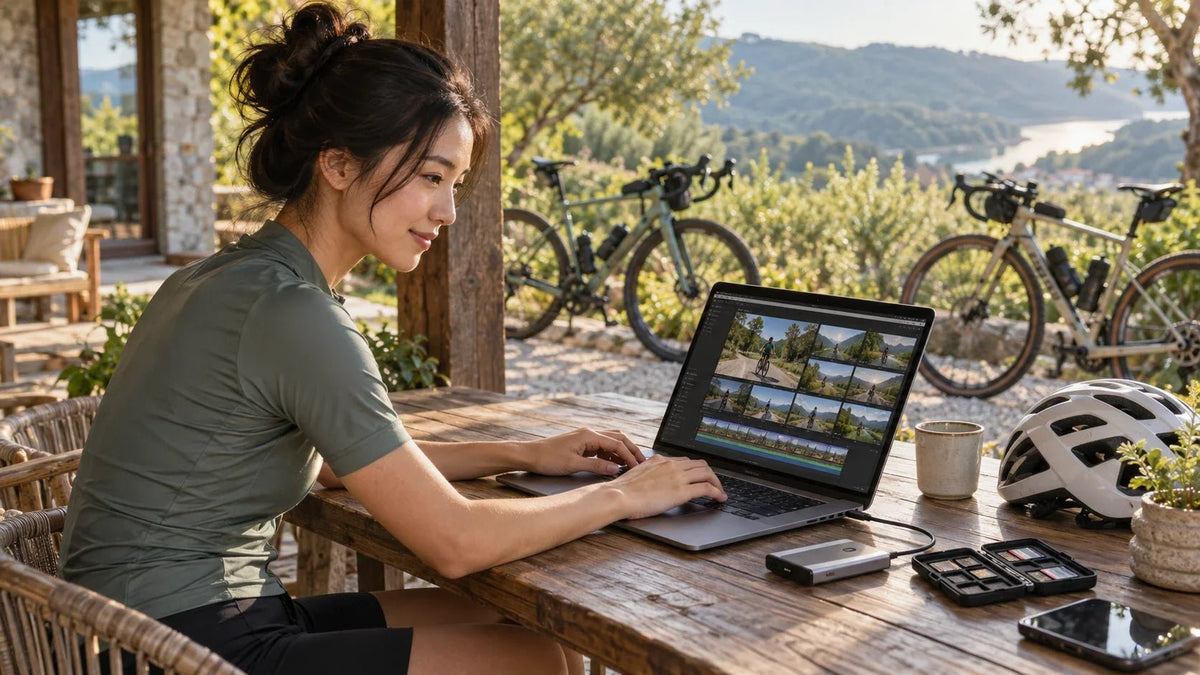
Make the first task a safe copy, then let AI help with the edit. Keep the original Insta360 files, select a manageable set for Auto Edit, review the framing and save both the finished video and the material needed to edit it again. Use a NAS for the library and a separate backup for recovery.
A weekend ride produces hours of beautiful footage. A month later, most of it is still on a card. Finding the interesting moments feels like another project, and the laptop is already running out of space.
The answer is a repeatable route from capture to a short film you actually share. Insta360's editing tools can help select and frame footage. An AI assistant can help organise the brief and shot list. Storage and backup make sure that a quick edit does not become the only copy of the trip.
Copy the Trip Before Editing It
Create one folder for the trip or event before importing. Keep the camera's original media and companion files together, using their original names. A renamed or missing source file can make a saved edit difficult to reopen.
Copy the footage to the working storage, then make an independent backup. Check the copy result, compare file counts and sizes, and open representative clips in the compatible Insta360 software. For valuable footage, use a copy tool that can verify checksums as well. Keep the card until you have checked the copies.
One Capture, Several Useful Outcomes
- Copy
- Select
- Edit
- Protect
The short film is an output. Keep the source files and editing information separately, then protect the library with a backup that can be restored.
Two folders on the same laptop are not independent protection against that laptop failing. A NAS adds a separate storage location; it also needs its own backup plan.
Choose Auto Edit or Studio for the Job
In the Insta360 mobile app, Auto Edit analyses supported flat and 360 media to select highlights, frame shots and combine them with music and effects. The current manual includes X6 among the supported camera models. Actual availability also depends on the phone, media type and app version.
For a selection from several clips, start from Edit → Auto Edit or select multiple items in Album. Starting from the player analyses the single open clip. Feed it a focused set of moments rather than expecting it to summarise an entire holiday in one pass.
On a computer, use Insta360 Studio when the edit needs closer attention to reframing, clip choices and project organisation. App and desktop workflows have different controls and supported features. Do not assume every mobile effect or editable project transfers unchanged between them.
| You Want To | Start Here | Keep an Eye On |
|---|---|---|
| Share a short highlight quickly | Auto Edit with a small, relevant selection. | The chosen subject, cuts, music and export format. |
| Control the framing of a specific moment | A compatible app or Studio editing workflow. | Where the view points and whether the movement feels comfortable. |
| Build a repeatable archive | A project folder with originals, editing data and exports. | Whether the project reopens and finds the source media. |
| Plan the story before spending hours editing | A short written brief and an AI-assisted shot list. | That the suggested moments actually exist in your clips. |
Give the Assistant a Story Brief
A normal chat assistant does not automatically read an Insta360 card or understand every proprietary source file. Start with a text shot list: the start, climb, group stop, descent and finish. Add rough timestamps or thumbnails only when the application supports them and you are comfortable sharing them.
Help me plan a [60–90 second] film from a [weekend cycling ride]. The audience is [friends, a club or customers]. The format is [landscape or vertical]. The moments I actually recorded are [list, with rough timestamps if known].
Propose an opening, a simple sequence and a closing moment. Identify the shots I should look for, where a wide view is useful and where a closer crop would tell the story. Keep the plan achievable with these clips.
Do not invent moments, people, locations or performance claims. Give me a concise review checklist for the edit and a file checklist for archiving. Do not rename, move or delete any source files.
The useful result is a shortlist you can inspect. If the plan calls for a dramatic summit shot that was never recorded, remove it. A clear beginning and ending often do more for a watchable film than another effect.
Review the Framing Before You Export
Watch the whole draft rather than checking only the first few seconds. In a 360 capture, the interesting person may be behind the direction initially selected. A technically sharp frame can still miss the reason the moment mattered.
- Check the subject. Does the view follow the rider, guest or activity you meant to show?
- Check the movement. Remove abrupt changes that make the viewer work to follow the scene.
- Check the cuts. Keep enough context to understand what happened, with less repeated footage.
- Check sound and music. Make speech understandable and use music you are entitled to share.
- Check the final export. Play the saved file on the phone or display where people will watch it.

Keep More Than the Finished MP4
A finished video is convenient to watch, but it does not contain every view and editing choice available in the original capture. Save the sources and the editing information if you may want a different crop, aspect ratio or sequence later.
Studio stores different kinds of editing data: the Media-page workflow uses .insprj, while Project-page projects use .insproj; related JSON files may hold library or configuration information. Check Preferences → File Path Settings → Project Files Save Path rather than assuming all editing data sits beside the exported video.
When moving a project, follow the documented workflow for that editing mode. Preserve the required file names and locations. Reopen a copied project and confirm it can find the original media before removing the old working copy.
| Folder | What to Keep |
|---|---|
| 2026-10-Trip / Originals | Unchanged camera media and required companion files. |
| 2026-10-Trip / Project | The supported editing project, its related data and a note of the software version and media location. |
| 2026-10-Trip / Exports | Finished landscape or vertical files, with meaningful version names. |
| 2026-10-Trip / Notes | A shot list, music information and the date the backup was verified. |
Plan Storage Around What You Keep
Use the actual folder size rather than a promise based on camera resolution. Bitrate, recording mode, duration, project media and exports all change the space needed.
For example, if one completed trip occupies 120GB across its originals, projects and exports, ten similar trips need 1.2TB before growth, working space and retained versions. This is capacity arithmetic, not a camera recording-rate claim. An independent backup needs capacity for its own retention too.
A responsive local SSD is a practical place for current editing work. The NAS can hold the organised library and shared deliverables. If you intend to edit directly from the NAS, test representative footage across the complete computer, network and storage path first. A faster network cannot remove every decoding or application bottleneck.


The Insta360 camera comparison covers capture choices. If the archive copies slowly, use the NAS transfer troubleshooting guide to separate a storage problem from a network limitation. Plan usable drive space with the RAID calculator.
Frequently Asked Questions
Can ChatGPT organise all my Insta360 videos automatically?
A normal chat does not access the camera card or automatically understand proprietary footage. It can help with a text shot list and an archive plan. Any file-moving tool needs a reviewed plan and explicit access.
Where do I start an Auto Edit from several clips?
Use the supported Edit or Album route in the Insta360 app. Check the current device and media requirements, and begin with a focused selection.
Is the exported MP4 enough to keep?
It is enough to watch that finished version. Keep the original capture and editing information if you may want different framing, a new aspect ratio or a revised film later.
Why does a saved Studio project lose its media?
A project can depend on source names, locations and related editing files. Preserve the documented arrangement and reopen the copied project to check it before removing the old copy.
Can I edit directly from a NAS?
Test representative footage on the actual computer, software and network. Transfer bandwidth, storage response and video decoding all matter. Keep current work on a suitable local SSD if that gives the more reliable workflow.
When can I format the camera card?
After checking the working copy and an independent backup, including representative playback. Important footage deserves a verified recovery copy rather than a copy-complete message alone.
Finish One Film and Keep It Recoverable
Start with one ride or event, make checked copies and choose a short story. Let Auto Edit handle a focused first cut, then review it yourself. Keep the originals and editing data, verify the finished file and protect the archive with a separate backup.
That workflow makes the next trip easier to finish. Buy extra storage or networking capacity when the measured workload needs it, with a clear place for both the active project and the long-term library.


