
Audio
TV Sound Out of Sync with Edifier Speakers: Fix the Audio Delay
Follow a short dialogue clip through the TV and speaker path. The direction of the delay tells you which change is likely to help.
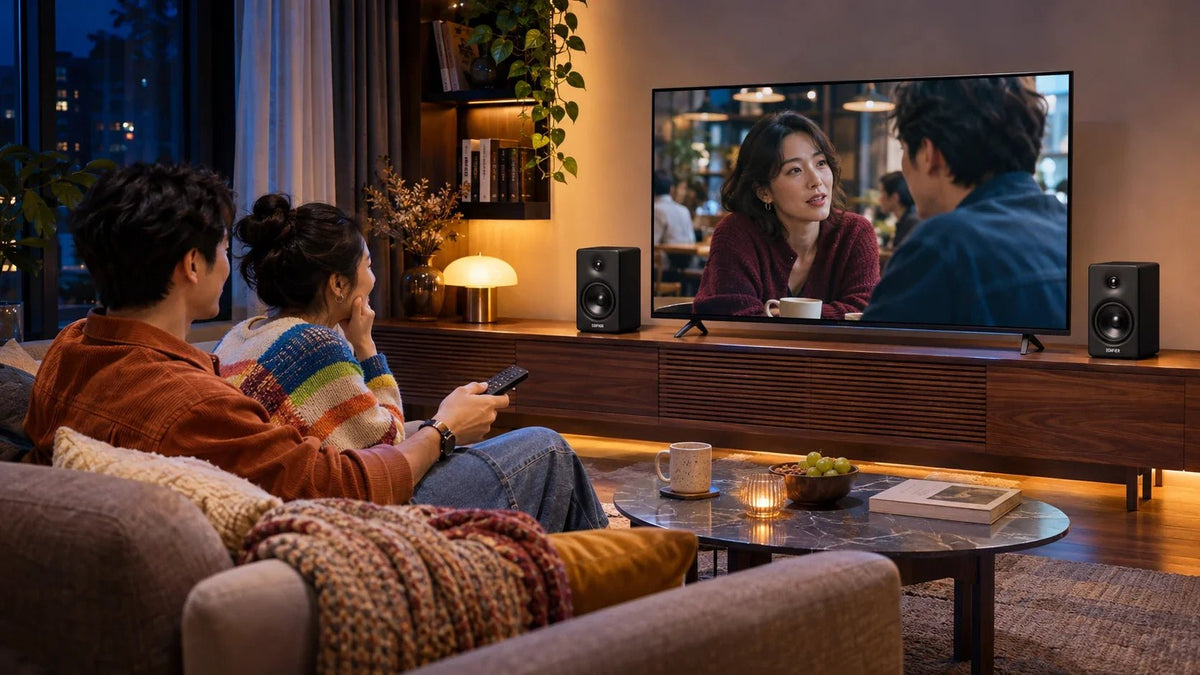
First decide whether the sound arrives before or after the mouth moves. Adding audio delay can help when sound is early, but makes already-late sound worse. Compare the TV speakers with the external speakers using the same clip, then check the connection, output format and processing settings.
The dialogue is clear, but every sentence feels slightly wrong. Replacing the speakers is an expensive way to discover that a TV setting, streaming app or Bluetooth path was responsible. A repeatable test is more useful than moving several sliders at once.
Hear First or See First? The Difference Matters
Use a short close-up dialogue scene or a familiar clap test with a clear visible impact. Avoid testing with an animated logo or music video whose original synchronisation is uncertain. Replay the same section after every change.
- Sound first: audio is early relative to the picture. A suitable audio-delay setting may bring it into line.
- Mouth or impact first: audio is late. Adding more audio delay pushes it farther behind; investigate the slow path instead.
Early Audio and Late Audio Need Different Fixes
Use the same short dialogue or clap clip after each change.
01 Sound happens first
Audio delay can bring the sound laterCheck the available TV or source setting and increase it gradually.
02 The mouth moves first
More audio delay makes the mismatch worseCompare TV speakers, simplify the external path and check format or processing.
Note the original setting before making changes. Television menus use different names and ranges, so check what a particular control actually delays rather than assuming that every “sync” slider behaves identically.
Compare Three Playback Paths
Play the same scene through the TV speakers, then the external system. If practical, compare a wired path with Bluetooth. Keep volume comfortable and use only one sound system at a time; simultaneous TV and external speakers can create an echo that complicates the test.
| Result | Where to investigate |
|---|---|
| TV speakers and external speakers both mismatch on one app | Try another programme or input; check the app, source and TV software. |
| TV speakers align, external audio is late | Check the external connection, format, speaker processing and available synchronisation settings. |
| Bluetooth is late but a wired path aligns | Use the suitable wired connection for that viewing setup; do not assume a different Bluetooth version guarantees the result. |
| Only a console has the problem | Compare its audio format, TV input mode and output route separately from the TV’s built-in apps. |
Match the Connection to the Exact Edifier Model
The Edifier M90 has HDMI eARC, optical, USB-C, AUX and Bluetooth inputs. For a supported TV connection, its manual specifies the TV’s eARC or ARC socket, ARC/eARC enabled, digital output set to PCM, and HDMI CEC enabled if you want the TV remote to control the speaker.
An ordinary HDMI input on the TV is not the same as its labelled audio-return port. Follow the actual socket labels at both ends. Then select the matching speaker input. Use a suitable cable rather than adding unnecessary adapters to an already uncertain path.
The Edifier R1280DBs is a different design with optical, coaxial, RCA and Bluetooth connections; it does not gain HDMI ARC because another Edifier model has it. The TV optical and PCM guide is useful when the symptom is silence rather than lip-sync.

HDMI eARC offers a direct supported TV audio path. Match the correct return-channel socket and the format settings to the manual.
Simplify Processing Before Fine-Tuning Delay
Temporarily compare a straightforward stereo PCM path where the equipment supports it. Disable optional sound effects one at a time and replay the same scene. Keep a note of the settings that made a difference so the final setup is repeatable.
TV picture processing can also affect timing. For games, compare the appropriate low-latency picture mode; for films, assess the normal viewing mode instead. A television’s synchronisation function may deliberately delay the picture to match a slower audio path, which can be noticeable in interactive games.
Check current firmware and source-app updates if the fault appeared suddenly. If only one stream or channel is wrong while other material aligns, the source itself may be responsible. Avoid a factory reset as the first step when a narrower test can identify the issue.
Keep a Small Before-and-After Record
A useful record needs only the source, connection, output format, relevant processing mode and whether the sound is early or late. Change one item, replay the clip and record the result. Test another source after the preferred arrangement works.
If a speaker or TV offers no way to compensate for the remaining mismatch, choose a supported shorter path or ask the manufacturer about that exact combination. A cable cannot guarantee zero delay, but removing an unnecessary conversion or wireless stage can make the diagnosis much clearer.
Choose the Fix That Matches the Direction
Keep a reliable wired path when it solves the viewing problem. Add only the delay required when sound is early. When sound is late, simplify its processing and connection before buying more equipment. The right upgrade is the one that provides the inputs and controls your television actually needs.
Frequently Asked Questions
Should I increase audio delay if dialogue is already late?
No. That makes late sound later. Compare the connection, output format and processing path first.
Does Bluetooth always cause a visible lip-sync problem?
No. Behaviour depends on the complete TV, source and speaker combination. Compare a supported wired path with the same clip to establish whether Bluetooth is the relevant difference.
Can any TV HDMI socket send sound to M90?
Use the television’s labelled eARC or ARC connection and the speaker’s matching HDMI connection. Enable the required TV functions and select the correct speaker input.
Which digital output format does the M90 manual specify?
Its current HDMI instructions specify PCM, with ARC/eARC enabled. CEC is used for supported control from the TV remote.
Does R1280DBs have HDMI ARC?
No. Its connection options differ from M90. Use its supported optical, coaxial, analogue or Bluetooth path as appropriate.
Why does only one streaming app look wrong?
The app, particular programme or source path may be responsible. Compare another title and another input before changing the whole system.


