
NAS Troubleshooting
Why Are My NAS File Transfers Slow? Check the Network, Disks and SMB
A slow copy does not automatically mean the NAS needs replacing. Check the complete transfer path, separate file workloads and use the results to choose the right fix.
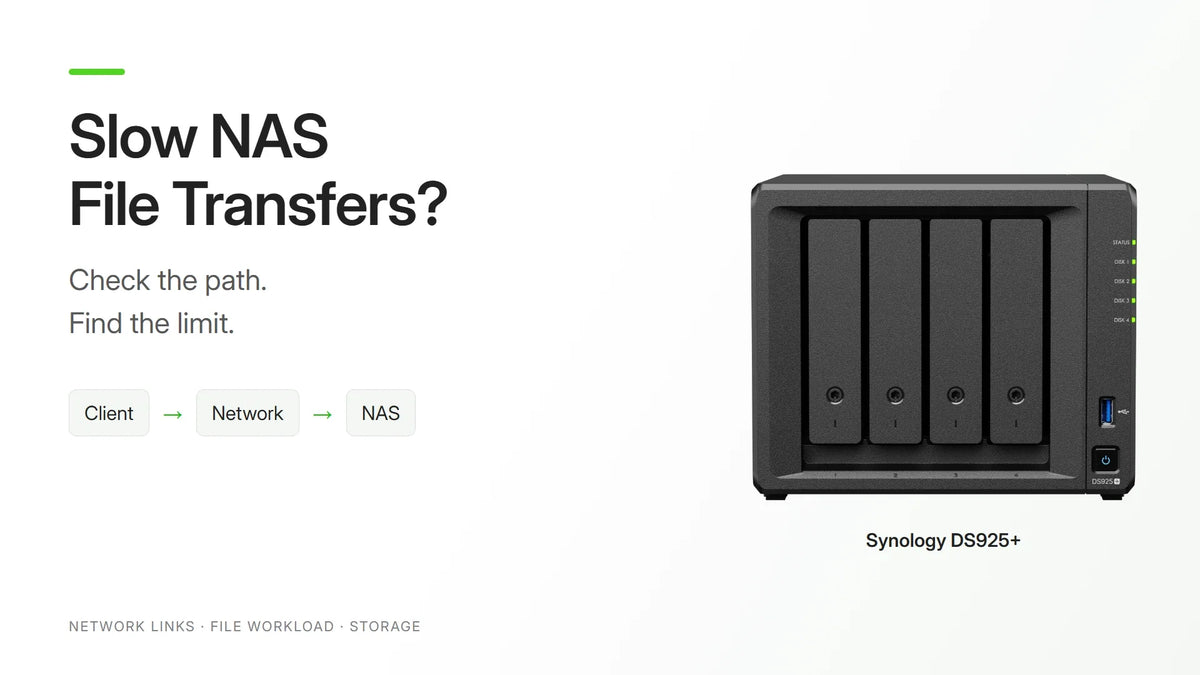
For slow NAS file transfers, check the negotiated network links, compare a large-file copy with a small-file folder, and watch the NAS resources during the same task. Those three checks help separate a network limit from storage, software or workload behaviour before another drive or switch is purchased.
A NAS is network-attached storage. A file copy depends on the device sending the data, the connection between devices and the system receiving it. The useful question is where that particular job slows down.
Start with a repeatable task: the same files, direction, client and destination folder. Record elapsed time as well as the speed shown during the copy. A brief peak at the beginning says less than the time taken to finish.
Start With Three Checks
- Define the copy. Is it local or remote, to or from the NAS, one large file or thousands of small files?
- Establish a wired baseline. Where practical, test through a known working Ethernet connection, keeping the same files and destination.
- Observe both ends. Check the client connection and storage, then the NAS network, disk activity and running jobs.
Keep the original files intact and use a separate test folder. If the NAS reports a failing disk or degraded storage, deal with the health and recovery position before chasing a faster result.

Read the Units Before Judging the Speed
Network links use bits per second; file-copy tools often show bytes per second. There are eight bits in one byte. Dividing a decimal link rate by eight gives a raw conversion before protocol overheads or other limits.
| Negotiated Link | Raw Conversion | What to Check |
|---|---|---|
| 100 Mb/s | 12.5 MB/s | A copy near 10 MB/s is a reason to inspect the negotiated links. |
| 1 Gb/s | 125 MB/s | A reading around 100 MB/s may be consistent with a 1GbE path. |
| 2.5 Gb/s | 312.5 MB/s | The client, switch path and NAS connection must support the rate. |
| 10 Gb/s | 1,250 MB/s | Storage and the workload must also supply or accept the data. |
These conversions are not product benchmarks or guaranteed copy speeds. Check whether the tool reports MB/s or MiB/s as well. A number alone cannot prove which component needs attention.
Check Every Link, Including the Hidden Ones
Read the connection rate reported by the computer, the relevant switch ports and the NAS. Include a USB network adapter, docking station and any connection between switches. The capability printed on a product box is different from the rate actually negotiated.
If an expected gigabit link has fallen to 100 Mb/s, inspect the cable and connector and test a known working replacement. Check port settings and adapter support rather than immediately buying faster storage.
For several users, examine shared uplinks too. A group of fast access ports still shares the connection carrying their traffic to the NAS. The 2.5GbE and 10GbE network guide explains how the complete path changes the buying decision.
If the wired test is healthy but WiFi is slow, investigate placement, signal and backhaul. Use the mesh and access-point guide for that separate part of the installation. Buying faster broadband does not increase a local Ethernet link.
Compare One Large File With Many Small Files
A single large file and a folder containing thousands of small items place different demands on a system. Small files repeatedly require creation, metadata and access operations, so the same total size can produce a much lower average transfer rate.
Test both. If the large file copies well but the small-file folder is slow, investigate the application and file workflow rather than assuming the cable is at fault. For an archive or handover job, packaging the files before transfer may help, but include packing, checking and extraction time in the comparison.
If a copy starts quickly then settles lower, record the sustained part. A buffer or cache may serve the beginning before the underlying storage becomes the limit. Repeat a long enough task to distinguish that behaviour from a momentary peak.
Watch the NAS While the Copy Runs
Use the vendor’s resource tools during the affected job. In QTS, Resource Monitor separates system resources, storage activity and processes. Compare CPU, memory, network and disk activity at the same time, rather than relying on one headline percentage.
Look for competing backup jobs, indexing or other scheduled work. Check the storage health and whether the client’s source or destination is busy too. A low network reading does not by itself prove a network fault if data is not reaching that interface quickly enough.

Repeat the job during an agreed quieter period if background demand appears relevant. Keep backup coverage and required business services in place. The aim is a useful comparison, followed by a schedule or hardware decision that addresses the observed constraint.
Keep SMB Security in the Diagnosis
SMB, or Server Message Block, is the file-sharing protocol commonly used for Windows network folders and many NAS shares. Note the client operating system, NAS software and file-service versions when the behaviour changes after an update.
Windows 11 24H2 Pro, Enterprise and Education require SMB signing for inbound and outbound connections. Signing protects communications against tampering; Microsoft recommends retaining that requirement. Do not turn off signing or encryption simply to produce a larger speed number.
If processing capacity becomes the constraint with the required security settings, investigate the supported software, drivers and workload together. A configuration that only performs acceptably after removing required protection is a different design decision.
When 2.5GbE, 10GbE or All-Flash Storage Helps
Choose the upgrade that addresses the measured limit. A 2.5GbE path can be useful when a capable client and storage system have outgrown 1GbE. A 10GbE design needs suitable connections at both ends, compatible switching and enough sustained storage performance.
SSD cache is a separate choice from storing the working data on SSDs. Synology’s guidance distinguishes repeated random access from sequential large-file work; cache is not a universal accelerator. Check the exact model, supported SSDs, memory requirements and intended workload before ordering.

More memory helps when the supported applications need working capacity. The Synology Plus and neo+ comparison separates memory capacity and ECC reliability from transfer-speed promises. For a wider replacement decision, use the NAS buying guide after identifying the present limitation.
Translate the Result Into Time Saved
For planning, divide the file size by the sustained rate measured for your job. A 20 GB decimal data set contains 20,000 MB. The arithmetic below assumes the stated rate holds throughout; it excludes packing, verification and other workflow time.
| Sustained Rate | Calculation | Copy Time |
|---|---|---|
| 100 MB/s | 20,000 ÷ 100 | 200 seconds: 3 min 20 sec |
| 250 MB/s | 20,000 ÷ 250 | 80 seconds: 1 min 20 sec |
| 800 MB/s | 20,000 ÷ 800 | 25 seconds |
Use your own observed rate in that calculation. These are time estimates, with no result assigned to a particular NAS. The business value depends on how often the job runs and whether it delays someone’s next task.
Retest the Original Task
After one change, repeat the same files, direction and destination. Record the negotiated links, elapsed time, concurrent work and any health warnings. Confirm the copied data is complete, then check an ordinary busy period as well as the quiet test.
If replacement or migration is justified, keep an independent backup and a return plan. The NAS drive migration checklist covers the separate question of moving an existing Synology system.
Frequently Asked Questions
Why Does My NAS Copy at Around 10 MB/s?
First check whether any Ethernet link negotiated at 100 Mb/s, whose raw limit is 12.5 MB/s. That reading is a clue, not a diagnosis: storage, WiFi and small-file overhead can also limit a copy. Check the actual links before replacing equipment.
Why Is a Folder of Small Files Slower Than One Large File?
Each file needs its own creation, metadata and access operations. The same total data size can therefore take much longer when spread across thousands of files. Compare both workloads before deciding that the network is faulty.
Will Faster Broadband Make Local NAS Copies Faster?
A copy between devices on the same local network normally does not use the internet service. Check the local client, switch, NAS and storage path. Remote copies have additional limits, including upload capacity and latency.
Will an SSD Cache Fix Slow File Transfers?
Only when the workload and supported cache design benefit. Repeated random access and one large sequential copy have different needs. Check the cache workload, compatibility and memory requirements; a faster cache cannot remove a slower network link.
Do Two NAS Network Cables Double One File Copy?
Not automatically. Link aggregation and SMB Multichannel are different arrangements. Any gain depends on the supported NAS, client, adapters and configuration. Synology also documents that its SMB3 Multichannel and Link Aggregation cannot run together.
Should I Buy 2.5GbE or 10GbE?
Choose 2.5GbE when the measured workload has outgrown 1GbE and the client and storage can use the extra capacity. Choose a complete 10GbE path for a justified larger workload, with sufficient storage performance and compatible adapters, switching and cabling.
The Recommendation: Find the Limit, Then Spend
Start with the transfer path and a repeatable test. Correct an unexpected link rate, separate small-file work from sequential copies, and observe storage and software during the task. Those results give an upgrade a clear purpose.
A complete 2.5GbE path is a sensible step when it meets the identified requirement. Choose 10GbE or all-flash storage when the workload and the rest of the system justify it. Keep the model, software versions, file sizes, measured rates and completion times together so the proposed solution can be checked against the original problem.


