
Buying Guides
Best NAS 2026 Buying Guide for Home and Business
Choose storage around the work it must do. Compare four NAS platforms, realistic usable capacity, network upgrades and the backup plan that protects your files.
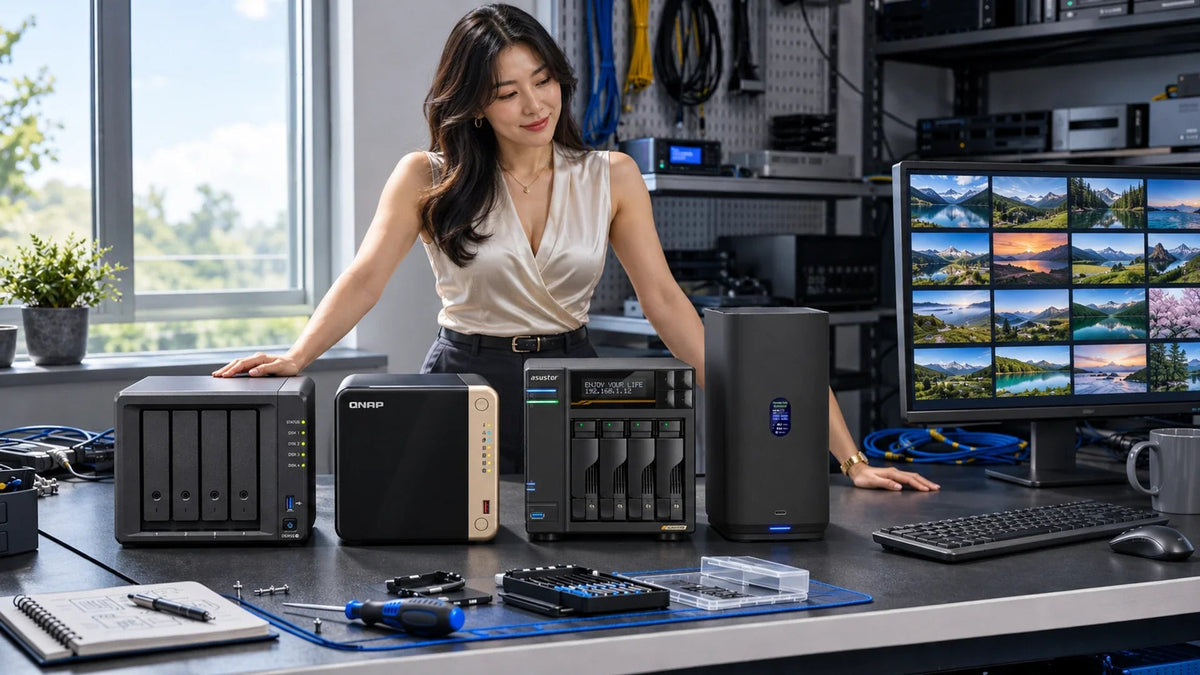
The best NAS is the one that fits your applications, usable storage and recovery plan. Shortlist Synology for a DSM-based backup and file workflow, QNAP for model-specific application and expansion options, Asustor for a hardware-rich setup, and UniFi Drive for a focused shared-storage workflow. Choose the bay count and network speed after checking what you need to run.
A NAS, or network-attached storage system, keeps files available to devices over a network. It can become the home for family photographs, shared business documents or a creative team’s projects. Depending on the platform, it may also run backup applications, media services or other workloads.
The expensive mistake is buying for one attractive specification while overlooking a required application, the second backup copy or the computer’s network connection. This guide keeps QNAP, Synology, Asustor and Ubiquiti on the same shortlist, then explains where their particular models fit.
Start with the Work, Then Shortlist the NAS
| Your main need | A useful shortlist | Check before deciding |
|---|---|---|
| Family photos, documents and laptop backup | A supported 2-bay system when mirrored capacity is sufficient; 4-bay when growth needs more room | Phone upload, computer-backup support, version retention and a separate recovery copy |
| Shared office files and managed backup jobs | Synology DSM or a suitable QNAP QTS model | Required backup packages, user access, restore workflow and licences |
| Large creative projects on a faster wired desk | Asustor AS6804T or a suitable QNAP configuration | The complete 10GbE path, storage layout and simultaneous workload |
| Shared files in a UniFi environment | UNAS-2, UNAS-4 or a suitable rackmount UNAS | UniFi Drive features, supported backup destinations and application fit |
| Containers, virtual machines or specialist software | An explicitly supported model with enough CPU and memory | Application support, RAM requirements, storage latency and a practical recovery route |
| Central storage in a rack | A properly sized rackmount system | Rack depth, cooling, power resilience, network interfaces and restore requirements |
A two-person office can need more storage performance than a larger team that mainly opens small documents. Likewise, a 10GbE port does not make a NAS suitable for every virtual machine. Write down the application, data size, simultaneous activity and acceptable downtime before comparing processors.
Compare Four Platforms Through Real Models
Synology: Start with the DSM Workflow
The DS925+ is a four-bay example with two 2.5GbE ports, two M.2 NVMe slots and 4 GB of ECC memory supplied. It is a sensible shortlist when the required file, sync and backup applications fit DSM. Confirm the specific package and client support rather than assuming every Synology model includes the same features.
Its DX525 expansion option can add drive bays, but the enclosure, drives and growth plan remain separate purchases. If comparing the newer neo+ variant, check the Plus versus neo+ memory comparison rather than treating similar model names as identical hardware.
QNAP: Check the Expansion and Application You Need
The TS-464-8G combines four SATA bays, two 2.5GbE ports, two M.2 slots and a PCIe expansion slot. Its Intel processor includes integrated graphics. This makes it worth comparing for a QTS application, media or home-lab requirement, subject to the application’s own format, licence and hardware support.
10GbE is an optional supported PCIe upgrade, not a built-in port. Budget the correct card if that connection is needed. Do not assume this specific QTS model supports every operating-system option found elsewhere in QNAP’s range.

Dual 2.5GbE and supplied ECC memory, with DSM application requirements checked against the exact model.

Dual 2.5GbE, two M.2 slots and PCIe expansion. A supported 10GbE card is an additional configuration choice.
Asustor: Consider the Complete Faster Workspace
The AS6804T Lockerstor 4 Gen3 brings four SATA bays, four M.2 slots, dual 10GbE plus dual 5GbE and 16 GB of ECC DDR5 memory. That hardware is relevant to a creative or multi-user workspace that can use it. Check ADM’s supported applications and your client connections alongside the port count.
Four M.2 slots give storage-design options; they do not make every workload faster automatically. Decide which data belongs on an SSD volume and whether a cache would help the actual access pattern.
Ubiquiti: Check UniFi Drive Against the Job
The UNAS-4 has four SATA bays, one 2.5GbE port and two M.2 NVMe slots for its supported SSD-cache feature. UniFi Drive provides shared-storage functions and backup destinations, including another UNAS, an SMB server and supported cloud services. It can be a useful fit when that is the workflow you want to manage.
Match the UNAS-4’s PoE+++ power requirement and supplied power arrangement. Its USB-C expansion port does not mean that any USB-C charger can power it. Check the current application features before replacing a traditional NAS application server merely to keep one management ecosystem.

Built-in 10GbE and 5GbE connections, four M.2 slots and supplied ECC memory for a suitably planned workspace.

Four SATA bays behind the enclosure, a 2.5GbE connection and UniFi Drive. Check its power and supported storage features.
For a deeper software comparison, use the NAS operating-system guide. The platform determines how you manage the device every day; a faster port cannot supply an application the platform does not support.
Choose Bays from Usable Capacity, Not the Box Size
A two-bay mirror is a reasonable choice when one drive’s usable capacity covers your files, retained versions and growth allowance. The UNAS-2 is one compact two-bay option for a supported UniFi Drive workflow. Four bays provide more layout choices, but they are not automatically necessary for every home.
Compare the space remaining after redundancy rather than adding the labels on the drives. These equal-drive examples use decimal TB, before filesystem and system overhead, snapshots, retained versions and working free space.
| Drives and layout | Approximate capacity before overhead | Drive-failure tolerance |
|---|---|---|
| 2 × 8 TB in RAID 1 | 8 TB | One drive |
| 4 × 8 TB in RAID 5 | 24 TB | One drive |
| 4 × 8 TB in RAID 6 | 16 TB | Two drives |
Same Four Drives, Different Usable Space
Both examples start with 4 × 8 TB = 32 TB of raw drive capacity.
01 RAID 5
One-drive failure toleranceParity is distributed across the array. The calculation does not reserve a particular physical drive only for parity.
02 RAID 6
Two-drive failure toleranceAllow additional space for system data, filesystem overhead, retained versions and normal working free space.
If you need to retain 17 TB of working data and versions, a four-drive 8 TB RAID 6 example cannot meet that requirement even though the box contains 32 TB of raw drive capacity. Larger drives or a different bay class may be more appropriate. Leave an explicit allowance for growth and free space instead of aiming to fill the pool on day one.
Use the RAID calculator to compare layouts. Confirm the RAID types and expansion rules supported by the exact device; adding an expansion unit or replacing drives does not behave identically on every platform.
For a larger rack, the UNAS-Pro-8 remains an eight-bay storage option to assess. Rackmount form alone does not establish suitability for a database or critical application. Include power resilience, service access and the required recovery time in that decision.
Match 2.5GbE or 10GbE to the Whole Connection
A NAS can have a fast interface while the computer still connects at 1GbE. The client adapter, switch ports and actual link negotiation all need to support the intended path. WiFi adds its own shared-radio conditions and is not a substitute for checking a wired baseline.

| Ethernet link rate | Theoretical byte rate before overhead | A practical buying question |
|---|---|---|
| 1GbE | 125 MB/s | Is the present computer or switch the first limit? |
| 2.5GbE | 312.5 MB/s | Will a modest client-and-switch upgrade serve the workload? |
| 10GbE | 1,250 MB/s | Can the storage, client and simultaneous work use the faster path? |
These figures convert bits to bytes; they are not file-copy benchmarks. Protocol overhead, encryption, drive layout, small files and other jobs reduce or change what you see. Two 2.5GbE ports do not automatically make one ordinary copy run at 5Gb/s. Link aggregation and SMB Multichannel have their own requirements.
Every Link Needs to Support the Intended Speed
A faster NAS port cannot remove a slower client or switch connection.
01 A 2.5GbE workspace
Check the negotiated linksA practical upgrade path when the workload fits. Confirm the actual adapter, switch ports and cable condition.
02 A 10GbE workspace
Check storage performance tooUse compatible interfaces at every stage. Drives, CPU, encryption and simultaneous work can still limit a copy.
Choose 2.5GbE when it meets the work and budget. Plan a supported 10GbE path when large projects, simultaneous clients or shorter backup windows justify it. If performance is already poor, use the slow NAS transfer guide to identify the busy stage before buying more hardware.
SSD cache is also workload-dependent. An SSD storage pool, a read cache and a read/write cache have different roles. A cache does not automatically accelerate every large sequential copy or repair a slow client connection.
Check Drives, Memory and Applications Before Ordering
Record the complete part numbers for the NAS, drives, memory and any expansion card. Check each against the manufacturer’s model-specific compatibility information. Similar capacity, connector shape or a familiar brand does not establish support for the intended function.
Synology Drive Compatibility Needs the Current Policy
Under DSM 7.3, Synology’s policy for 2025 DiskStation Plus models allows more flexibility for third-party HDDs and 2.5-inch SATA SSDs when creating storage pools, while incompatible-listed models remain a separate restriction. M.2 NVMe pool and cache creation have stricter compatibility requirements. Do not generalise that desktop policy to every rackmount or enterprise series.
The Synology drive-compatibility guide provides context, but the final check is the exact model, installed DSM version and current drive list. “Physically fits”, “can initialise” and “fully supported for this task” are different questions.
List the Applications You Actually Need
- Computer backup: supported operating systems, complete-machine versus folder backup, retention and a tested restore.
- Microsoft 365: the supported services and recovery process, rather than assuming a OneDrive copy covers every mailbox and Teams requirement.
- Media: playback clients, codecs, direct play, transcoding and any licence or acceleration requirements.
- Containers or virtual machines: exact package support, CPU architecture, memory and storage needs.
- Cameras: supported recorder application, camera models, recording licences and retention plan.
UniFi Drive storage and UniFi Protect recording are different roles. Verify the recording, archive and backup functions of the current products rather than assuming a UNAS replaces a UNVR. The NVR storage guide helps size recorded footage separately from ordinary shared files.
For Microsoft 365 requirements, the cloud backup and recovery guide explains why application coverage matters. A shared folder or sync task is not automatically the same recovery system.
Buy the Complete Storage and Recovery Plan
RAID improves availability for the drive failures covered by the chosen layout. It does not protect against every deletion, stolen appliance, fire or compromised administrator account. Snapshots are useful for retained versions, but copies held only on the same NAS still share that device’s risks.

Choose a separate backup destination and decide what is kept off-site, offline or protected from routine changes. Test a restore to a usable location. The answer should include how much recent work could be lost and how long recovery can take, not merely whether a scheduled task has a green icon.
Compare the complete cost: enclosure, compatible drives, memory or network cards, switch and client upgrades, an independent backup destination, any licences and suitable power protection. A lower enclosure price can be attractive until the missing connection or recovery copy is added.
Include the UPS and shutdown arrangement where an interrupted write or unclean shutdown would disrupt the workflow. A UPS supports continuity and an orderly shutdown; it does not create another copy of the files.
- Measure current data and the versions that must be retained.
- Choose the required applications and verify model support.
- Calculate usable capacity with a growth allowance.
- Match the computer, network and storage performance.
- Specify the separate backup copy and test a restore.
- Compare the full configuration, support and expansion costs.
The practical shortlist: use a compact two-bay system when the mirrored capacity is genuinely enough. Compare DS925+ for a suitable DSM workflow, TS-464 for its supported applications and expansion, AS6804T when its built-in faster hardware is useful, and UNAS-4 when UniFi Drive meets the job. Move to a larger tower or rack when capacity, concurrency or resilience calls for it.
Browse the NAS range with that brief in hand. You can then compare a complete working configuration instead of selecting the most impressive specification in isolation.
Frequently Asked Questions
Which NAS is best for home and small-business use?
Choose by application support, usable capacity and recovery requirements. Synology, QNAP, Asustor and UniFi Drive serve different priorities; the exact model and complete configuration matter more than a universal brand winner.
Is a two-bay NAS enough, or should I buy four bays?
Two bays can be enough when mirrored capacity covers the files, retained versions and growth plan. Four bays offer more RAID and capacity choices. Calculate the usable space and supported expansion path before deciding.
Do four 8 TB drives give 32 TB of usable storage?
Not in a redundant RAID 5 or RAID 6 layout. Before overhead, the equal-drive examples provide about 24 TB in RAID 5 or 16 TB in RAID 6. Filesystem, system data, snapshots and free space need further allowance.
Do I need 10GbE for a NAS?
Only when the workload can benefit and the rest of the connection supports it. 2.5GbE can suit many desks and offices. A 10GbE NAS connected through a 1GbE computer or switch still encounters that slower stage.
Can I use third-party drives in a newer Synology NAS?
Check the series, installed DSM version and exact drive list. DSM 7.3 gives 2025 DiskStation Plus models more flexibility for third-party HDDs and 2.5-inch SATA SSDs. M.2 cache and storage-pool rules remain stricter.
Does RAID or a snapshot mean I no longer need a backup?
No. RAID and local snapshots address particular failure or recovery needs. Keep an independent copy with suitable retention and protection, and test how you will restore it if the NAS itself is unavailable.


