
Access Control
UniFi Intercom Viewer Not Ringing: Receivers, Schedules and PoE Checks
An online indoor screen is not automatically a call receiver. Check the UniFi Access call path before replacing the viewer or resetting the door system.
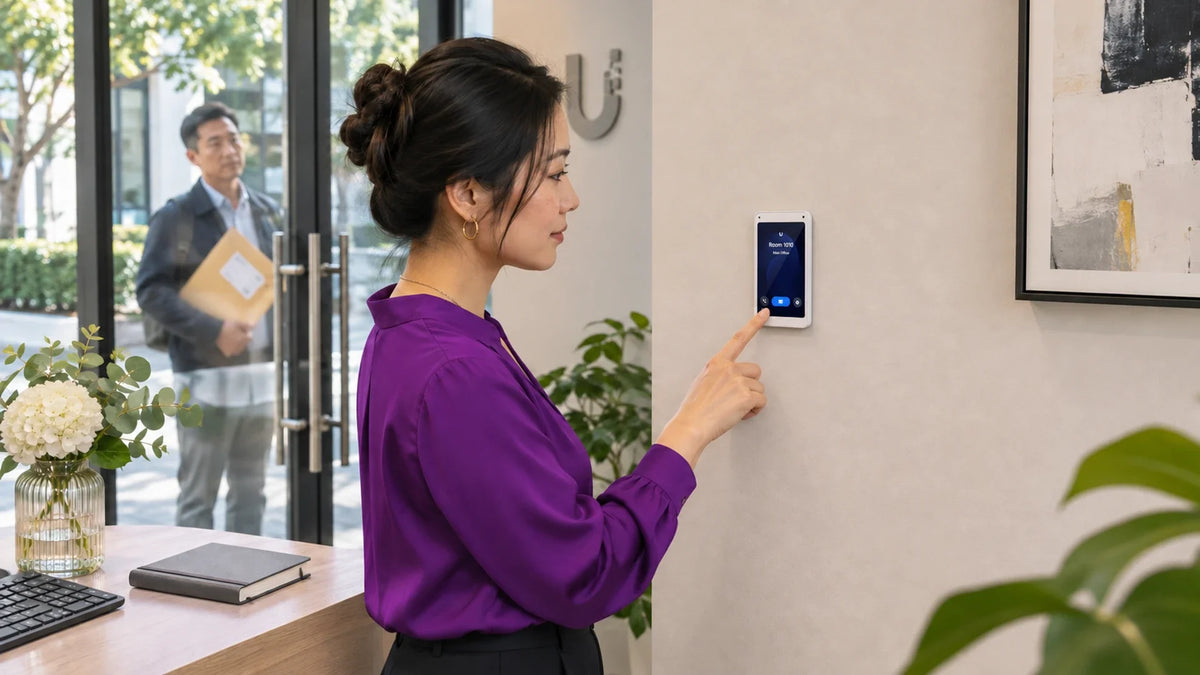
If a UniFi Intercom Viewer is online but does not ring, check its assignment as a doorbell call receiver for the correct Access reader. Then check receiver schedules and call-group behaviour. If the screen is offline, start with PoE, the network connection and adoption on the appropriate UniFi Console.
The visitor presses the entrance button. Someone’s phone rings, but the indoor screen at reception stays silent. That does not immediately point to a faulty speaker or display. The phone and viewer can be different receivers with different call assignments.
Trace the request from the entrance to the intended person, then test video, speech and the authorised unlock action separately.
Confirm the System: Access Viewer or Protect Doorbell?
The UA-Intercom-Viewer is an indoor UniFi Access display for visitor screening, conversation and remote door control with compatible Access equipment. It is not a universal SIP monitor or an automatic receiver for every doorbell sold under the UniFi name.
UniFi Protect doorbell notifications and chimes are a different workflow. If the issue is a phone alert from that system, start with the doorbell notification guide. Mixing the two systems can lead to changing settings that have no effect on the indoor Access receiver.
An Online Screen Still Needs the Right Call
Follow the visitor destination through to the assigned receiver.
01 The visitor call
Check this exact destinationA live-view list and a call-receiver assignment are different settings.
02 The diagnostic sequence
Verify the whole visitA ringtone alone does not prove conversation or authorised release of the correct entrance.
Record the reader model, viewer model, console and Access application version. This gives the next check a defined system instead of a collection of similar-looking devices.
Separate an Offline Screen from a Missed Call
For a dark or disconnected viewer, confirm the supported PoE supply and the Ethernet connection. The UA-Intercom-Viewer uses PoE and a 10/100Mb/s Ethernet port; it does not need a 10GbE port to receive a visitor call.

The 5-inch indoor display is designed for portrait mounting. Match its power, console and compatible Access-reader requirements.
Check its actual device state in Access, not just whether a switch port has a link light. Confirm that the viewer and compatible reader are adopted on the same intended UniFi Console. Review application and device versions before assuming a new feature is available.
If the screen is online and its interface responds normally, move on to call routing. Replacing the cable at that point is unlikely to correct a missing receiver assignment.
Assign the Viewer to the Correct Reader
In the current Access interface, open Interface Designer, select the entrance reader and review its Directory or Doorbell Call arrangement. Confirm that the actual indoor viewer is added as a receiver for the intended destination.
A viewer’s list of available caller views and a reader’s call-receiver configuration serve different purposes. Seeing a reader in live view does not prove that pressing its call control will ring this viewer.
Give destinations meaningful names, such as Reception or First-Floor Office. For a directory, test the exact entry visitors will select. An installation can route one directory correctly while another still points to an old recipient.
Save the change and place a call from the actual entrance. Testing only from an administrator’s screen can miss the path the visitor uses.
Check Schedules and Call Groups
Review receiver schedules at the relevant destination. A recipient may be allowed at certain times rather than always. Compare the current console time and intended working hours before changing the schedule.
| Observed Behaviour | A Useful Next Check |
|---|---|
| Phone rings, viewer stays quiet | Confirm both are receivers for this exact reader or directory. |
| Viewer rings only at certain times | Review its receiver schedule and the system time. |
| Another desk rings first | Inspect the configured call groups and their sequence. |
| Live view works, call does not arrive | Review doorbell call assignment separately from the viewer’s caller-view list. |
| Every receiver fails together | Check the reader, Access application, console and shared network path. |
Supported call groups can ring in sequence after a configured unanswered interval. A later group is not necessarily meant to ring immediately. Decide who should answer first, who handles overflow and what happens outside staffed hours, then test that actual policy.
Test Video, Speech and Unlock as Separate Steps
Once the call arrives, confirm that the indoor person can identify the visitor, both people can hear each other and an authorised unlock opens the intended entrance. A successful ringtone proves only the first part.

Keep the test controlled and maintain the building’s required safety arrangements. Do not disable access security or alter lock wiring simply to investigate a missing call. If the screen loses power when another PoE device starts, review the power path with the PoE budget guide.
For a network-related failure, record which functions still work and where. Avoid the blanket conclusion that a working local view proves every remote call and unlock path will survive an outage.
Leave a Handover People Can Follow
Document the reader-to-receiver assignments, staffed hours, overflow recipients and the result of the entrance test. Give reception staff a short instruction for answering, speaking and making an authorised release without sharing a console-owner password.
Use the manufacturer’s supported permissions and receiver roles for the installed version. A working front-desk process should not depend on one employee’s personal phone or a general administrator login left open all day.
Fix the stage that failed: power and adoption for an offline screen; assignments, schedules and groups for a silent online viewer. Then check the visitor can be seen, heard and admitted through the right entrance.
Frequently Asked Questions
Does an online viewer automatically ring for every Access reader?
No. Check the doorbell call or directory receiver assignment for the relevant reader and destination.
Can a Protect doorbell simply call this Access viewer?
Do not assume compatibility between the two workflows. Verify the exact supported Access-reader and receiver arrangement. Protect doorbell alerts and chimes are configured separately.
Does the viewer need 10GbE or PoE++?
The UA-Intercom-Viewer has a 10/100Mb/s Ethernet interface and a PoE power requirement. Use its specified compatible supply rather than choosing a port by headline speed.
Why does the viewer ring later than another receiver?
The configured call-group sequence can send an unanswered call to a later group. Review the destination’s actual groups and timing.
Can the viewer be mounted horizontally?
The UA-Intercom-Viewer is designed for portrait mounting and does not support landscape rotation. Follow the installation instructions for its mounting method.
Should I factory-reset the whole Access system?
First record the symptom and check power, device state, adoption, receiver assignment and schedules. A full reset can remove useful configuration without fixing a routing mistake.


