
Lighting
Give Smart Lights a Physical Button: Tapo S200B Setup and Everyday Fixes
A physical button makes smart lighting easier for guests and the whole household. Build a simple Tapo S200B control plan and test the parts that can fail.
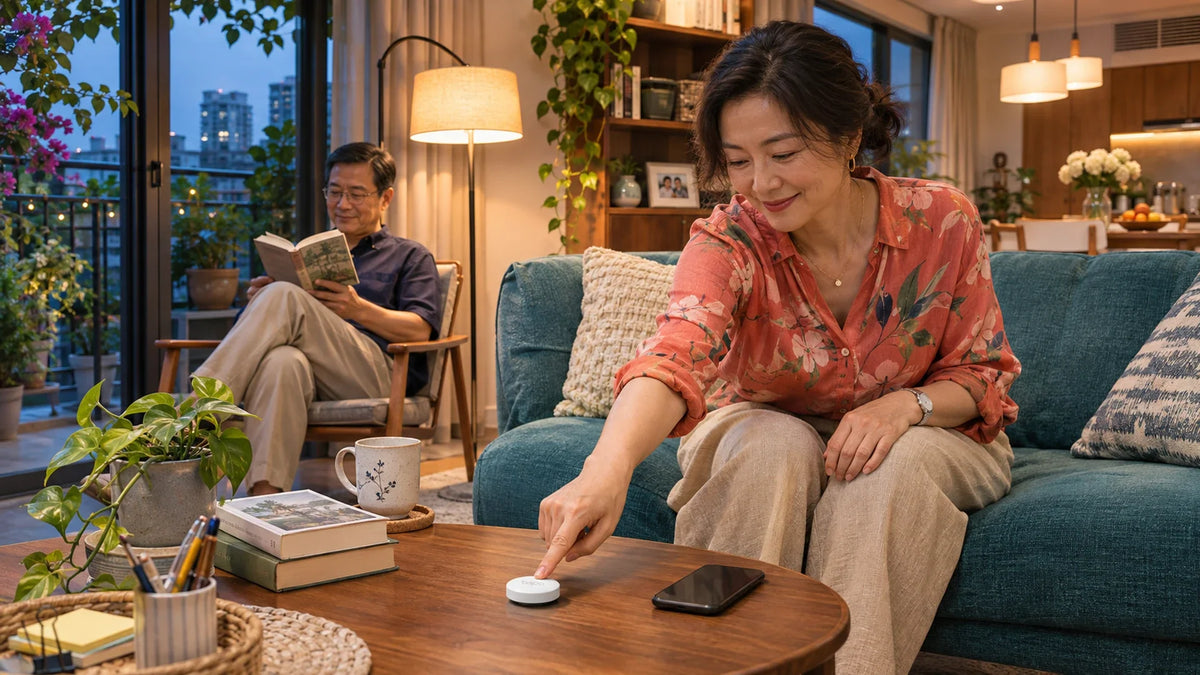
A Tapo S200B gives compatible smart devices a physical tap-and-rotate control without using your phone each time. Pair it with a compatible Tapo hub, assign clear Smart Actions and keep the controlled lights powered. It is a wireless command button, not a mains switch that directly supplies electricity to a lamp.
The lighting looks impressive in the app, but a guest wants to turn on the reading lamp. The phone is charging in another room and the wall switch has cut power to the smart bulb. A simpler control can be a better upgrade than another complicated automation.
The aim is to make one familiar action work from a sensible place, whether someone is entering the room, sitting on the sofa or going to bed.
A Smart Button Is Different from a Wall Switch
The Tapo S200B is battery powered and communicates through its compatible Tapo hub. The hub and target devices then carry out the configured action. There is no mains cable coming out of the button and no need to rewire it into the light circuit.
A traditional wall switch can remove the smart bulb’s electricity. Once unpowered, that bulb cannot receive a command to turn itself on. Keep ordinary household control understandable, including an accessible way to isolate equipment when required; do not cover over electrical controls as a substitute for a proper plan.
A Button Command and Mains Power Are Different
A tap can request an action only when the complete supported chain works.
01 The command path
Make one action obviousChoose the right target and test it from the location where people will use the button.
02 The light still needs power
A button does not restore mainsA bulb whose physical switch has cut power cannot turn itself on by receiving a wireless request.
If a bulb repeatedly disappears from the app, use the smart bulb offline guide to separate power loss from WiFi problems before adding more rules.
Build One Useful Control Before Adding More
Start with a single room and a compatible light that already works reliably from its app. Name the light and button clearly, pair the button to the hub through the Tapo app and assign one action. Test it from the intended position.

Use a compatible Tapo hub and supported Smart Actions. Its small physical control complements the app without switching the lamp’s mains supply.
The button supports single tap, double tap and rotation actions. Enable Double Tap in the button’s device settings if that is part of the plan. Keep the first single-tap action obvious: one press should do what a new person would reasonably expect.
Do not immediately assign different hidden actions to every gesture. A control that needs a long explanation may be less convenient than the app it replaces.
Choose Actions for the Room, Not for the Demo
These are example assignments for compatible devices, not promises that every Tapo model supports every action. Use the options available for the exact target device in Smart Actions.
| Place | A Useful Starting Action | What to Test |
|---|---|---|
| Beside the sofa | Single tap toggles the reading light; rotation adjusts supported brightness. | A seated person can reach it comfortably and see the result. |
| By the bed | One deliberate tap turns the bedroom lights off. | The action is clear in the dark and does not affect someone else’s room. |
| At the entrance | One action turns on the selected room lights. | Only the intended devices respond; wall power remains available. |
| On a work desk | Switch between supported task-light settings. | The new level is useful on the actual desk, not just attractive in the app. |
For a group, decide whether you want an explicit turn off action or a toggle. If one lamp is already on and another is off, an ambiguous toggle arrangement can produce a surprising result. Test that mixed starting state before calling the scene finished.
Position the Button and Hub for Everyday Use
Test pairing and response with the hub nearby first, then move the button to its actual location. Confirm the hub and button are compatible regional versions; physical similarity does not guarantee the same sub-GHz band or supported integration.

Keep the hub powered and suitably located, rather than hidden behind dense metal equipment. Check battery status when response becomes unreliable. Secure the button so it stays where people expect to find it, and keep replacement coin-cell batteries away from children.
Do not assume that a compatible Tapo hub also turns this button into a universal Matter remote. Current manufacturer guidance excludes S200B/S200D button support through the hub’s Matter integration. Plan the actual supported ecosystem.
When a Press Does Nothing, Check in Order
- Control the target light from the app. If that fails, solve its power or connection problem first.
- Check the hub is online and the button appears under the intended hub.
- Check the battery, test close to the hub and compare with the normal location.
- Review the selected gesture, target device and any time conditions.
- Temporarily test one simple action so overlapping rules do not hide the result.
- Check the exact button, hub and device firmware before rebuilding a working system.
If one tap turns the light on and straight off again, inspect duplicated or conflicting rules. Record which gesture fired and what each rule requested. Repeatedly adding another automation can make that symptom harder to understand.
Test Network and Power Changes Before Relying on Them
Some qualifying automations can be executed locally by a supported hub, depending on the devices, firmware and rule. Check the app’s actual indication and the manufacturer’s conditions. Do not assume every Smart Action works without internet just because the button itself uses a hub.
A hub power failure is different from an internet interruption. Test the relevant condition deliberately and restore normal service afterwards. For normal lighting, keep a practical fallback; do not treat a convenience button as an emergency or life-safety system.
The best smart-lighting control is easy to understand: choose one useful gesture, keep the bulb powered, place the button within reach and test the full chain. Add more actions only when they solve a real household need.
Frequently Asked Questions
Does Tapo S200B work without a hub?
It requires a compatible Tapo hub. It is not a standalone WiFi switch that pairs directly with an ordinary router.
Can the button turn on a bulb whose wall switch is off?
No. A bulb needs electrical power before it can receive a smart command. The button does not restore a mains supply that has been switched off.
Why does double tap not run my action?
Check that Double Tap is enabled in the button’s settings, that the intended gesture is selected in the rule and that the target action works on its own.
Can I use it as a universal Matter button?
Do not assume that. Current Tapo hub Matter guidance excludes S200B/S200D button support. Verify the supported integration for the actual devices.
Will every automation work during an internet outage?
No. Local execution depends on the supported hub, firmware, devices and rule. Check the actual app indication and test the intended outage condition.
Should I reset all my lights when the button stops working?
Start with the target device, hub, battery, pairing and assigned rule. A controlled simple test is more useful than resetting an otherwise working household system.


