
Document Scanning
Scanner Keeps Taking Two Sheets? Fix Double-Feeds Before Replacing It
A scanner taking two sheets can hide a missing invoice. Find the cause, restore reliable feeding and choose the right Ricoh workflow for mixed paperwork.
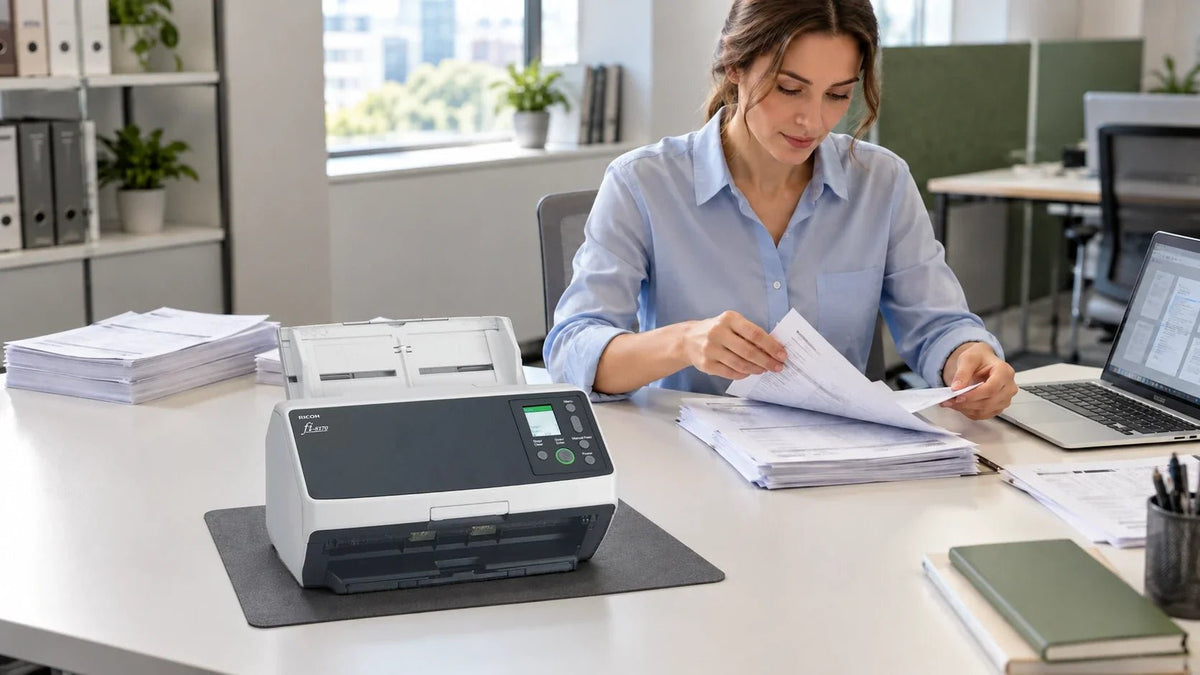
If your scanner keeps taking two sheets, start with the paper, loading and feed rollers. Separate and align the batch, check the guides, then clean or replace the model’s feed components as needed. If the scanner stops on just one sheet, inspect attached receipts or labels before changing multifeed settings.
It is the last job before lunch: a stack of invoices goes into the scanner, two pages travel together, and the whole batch needs checking again. Sometimes the problem is a genuine double-feed. Sometimes a receipt attached to one invoice triggers the detector even though only one main sheet has entered.
Those situations need different fixes. A useful repair starts by identifying what the paper is actually doing, rather than repeatedly pressing Start or buying a faster scanner.
Is It A Double-Feed, A Jam Or A False Warning?
| What You See | What To Check First | The Next Step |
|---|---|---|
| Two separate sheets enter together | Pages sticking together, overfilled feeder, dirty or worn separation components. | Prepare a smaller, consistent batch; check the rollers if it repeats. |
| One invoice stops at an attached receipt | The document has a genuine extra layer, which an overlap detector can notice. | Use a suitable document path or a controlled, model-supported overlap exception. |
| The sheet catches, folds or stops inside | A staple, damaged edge, unsuitable original, obstruction or feed problem. | Stop and follow the scanner’s jam-removal procedure. |
| The same page appears twice in the PDF | A restarted batch or a page rescanned without replacing the earlier image. | Review the capture application’s thumbnails and rescan workflow. |
Multifeed is the scanner’s term for overlapping sheets. Detection is a safeguard against silently missing a page. The best outcome is a complete, correctly ordered file with reliable feeding and appropriate detection still in use.
Start With The Paper And Feeder

- Remove fasteners. Check for staples and paper clips, including small staples hidden in a folded corner.
- Fan and align the sheets. Separate the pages gently, then square their edges. Freshly laser-printed sheets can cling together through static.
- Reduce the batch. Start with a small group of similar, supported sheets rather than a feeder packed to its limit.
- Set the side guides. Position them for the document width without forcing the paper into a curve. Check that smaller sheets actually meet the feed area.
- Retest deliberately. Scan that small batch, inspect the output, then add the more difficult originals separately. Change one thing at a time.
Mixed paperwork needs particular care. Ordinary A4 invoices, thermal receipts and multi-part forms do not behave identically. Ricoh’s fi-8170 mixed-batch guidance excludes several combinations, including thermal and carbonless paper mixed with other document types. Split the job by paper type where required, rather than assuming that a larger feeder can take everything together.
Dirty Rollers Or Worn Rollers?
The pick mechanism starts the feed; the separation mechanism helps prevent the next sheet following it. Paper dust and contamination can affect their grip. Wear creates a different problem, so repeatedly wiping an exhausted component is not a lasting maintenance plan.
| Check | Ricoh fi-8170 Reference | What It Means In Practice |
|---|---|---|
| Internal cleaning | Approximately every 5,000 sheets in the operator’s guide. | A starting guideline. Some paper and printing conditions require more frequent cleaning. |
| Pick and brake rollers | A suggested replacement cycle of 200,000 sheets in the current global guide. | Review the counters, condition and feed symptoms. The interval varies with paper, use, cleaning and environment. |
| Replacement part | Specified for the exact scanner and its part number. | Check the rear product label before ordering; similar-looking rollers are not enough to establish compatibility. |
Use the fi-8170’s consumable counters in the operator panel or Software Operation Panel to check its recorded use. Clean and reseat the specified components correctly, then test again. If feeding remains unreliable with suitable paper, investigate wear or a mechanical fault.
Follow the exact model’s cleaning sequence. For the fi-8170 cloth-cleaning procedure, Ricoh starts with power off, the cable unplugged and at least 15 minutes to cool. Particular feed and eject rollers are then rotated using its documented powered Roller Wipe mode. These are separate stages: do not improvise by turning resistant rollers or cleaning a running scanner.
Use the materials specified in that guide and allow the cleaned parts to dry as directed. Reset the relevant maintenance counter after the corresponding work is completed, rather than clearing it to dismiss an unresolved warning. A fi-800R has a different mechanism and maintenance schedule, so the fi-8170’s figures must not be copied across.
Why One Sheet With A Receipt Can Trigger A Warning
An ultrasonic overlap detector can recognise the extra layer formed by an attached receipt, sticky note or photograph. That does not automatically mean the scanner is faulty.
Where supported, Ricoh’s intelligent multifeed function can handle specified attachment patterns while retaining overlap detection for the job. The fi-8170 can use the length and position of an attachment as part of that exception. This needs an appropriate scan profile and a checked result; it is not a reason to turn detection off for all paperwork.
Decide whether the attachment should remain with its parent document. If it can be separated under the organisation’s records process, scan and associate it correctly. If it must remain attached, choose a supported workflow for that original and verify that both its information and the main page have been captured.
A Practical Invoice-Batch Check
Imagine a job containing 30 A4 invoices, ten narrow receipts and two forms with attached notes. Feeding the complete pile as one mixed stack makes troubleshooting harder because several paper behaviours are involved.
- Run the 30 similar invoices first. Fan them, check the guides and inspect the resulting page order.
- Scan the receipts using a suitable profile and document path. Keep their relationship to the invoices clear in the file naming or capture workflow.
- Review the two attached-note forms separately. Use a supported exception only if the attachments need to remain in place.
- Reconcile the saved result. Check required fronts and backs, orientation, legibility and the destination file before releasing the job.
This is a way to isolate the cause, rather than a claim that every batch needs three permanent jobs. Once the workflow is reliable, combine only the document types and settings the scanner supports.
Count sheets and image sides separately. Ten sheets scanned on both sides can produce 20 images; blank-page removal may reduce the saved total. An expected page count should reflect the capture settings and the actual originals, not simply the number loaded into the feeder.
When A Different Scanner Makes Sense
If suitable paper and correctly maintained components feed reliably, keep the scanner working. An upgrade earns its place when the document mix, batch volume or desk layout has outgrown the existing workflow.


These are manufacturer maximum scanning rates, rather than the time needed to prepare, check and file a real mixed batch. The fi-800R’s Automatic Skew Correction and Active Separation help its feed workflow; its compact return path addresses a different need from the fi-8170’s larger batch feeder.
Compare the actual forms, paper sizes, condition, daily peaks and computer connection. Fragile or bound originals may call for a supported carrier or flatbed workflow. A higher pages-per-minute figure alone does not establish that a scanner can feed a particular original safely.
Finish With A Complete, Searchable File

Check the beginning, end and interrupted point of a resumed batch. Confirm that a rescan replaced the intended image or was inserted in the correct position, and that the final PDF opens from its actual storage destination.
OCR makes captured text searchable; it does not reconstruct a sheet that never reached the imaging sensors. Keep a clear hold point before originals are archived, returned or disposed of, with access and retention rules appropriate to the records.
If the problem persists after preparation and model-correct maintenance, record the exact model and part number, displayed error, consumable counters, paper type and what changed during testing. Those details help a Support Specialist distinguish a settings issue, a replacement-part requirement and a service fault.
Frequently Asked Questions
Why does my scanner take two sheets at once?
Pages may stick together, the feeder may be overfilled, or feed and separation components may be dirty, incorrectly seated or worn. Test a small batch of similar supported sheets, then check maintenance if the fault repeats.
Should I turn off multifeed detection?
Keep it enabled for normal batches. Where supported, use a controlled exception for a known attachment pattern and inspect the output. Disabling detection across the job can leave a genuine overlap unnoticed.
Does cleaning fix every double-feed?
No. Cleaning can restore grip when contamination is the cause, but it does not replace worn parts or make unsuitable originals compatible. Check the exact model’s components and counters if feeding remains unreliable.
How often should fi-8170 rollers be replaced?
The current global operator’s guide gives a suggested 200,000-sheet cycle for its pick and brake rollers, with conditions affecting actual life. Check the scanner part number and use the specified replacement components.
Why does an invoice with a receipt trigger an alert?
The attachment creates an extra layer that overlap detection can notice. A supported intelligent multifeed setting may handle a defined attachment pattern; review the scan and retain the correct association between the records.
Does OCR prevent missing pages?
No. OCR works on the images captured. Check the page sequence and required sides after a feed interruption, especially when duplex scanning, blank-page removal or rescanning changes the saved image count.
Fix The Feed Before Buying More Speed
Start with a small, consistent batch and keep detection useful. If cleaning restores reliable feeding, build that maintenance into the routine. If the correct components are worn, replace them. If the paper itself falls outside the supported workflow, change the document path or scanner choice.
For a workgroup batch station, compare the fi-8170; for a compact counter handling supported IDs and documents, consider the fi-800R. Review the document-scanner range or discuss the actual paperwork and workload before choosing the next system.


