
AI Workflows
Run AI Locally with Your NAS: Storage, RAM and GPU Requirements
Your NAS can store the documents, run an AI model or connect to a separate AI computer. Choose the right architecture before spending on RAM, SSDs or a GPU.
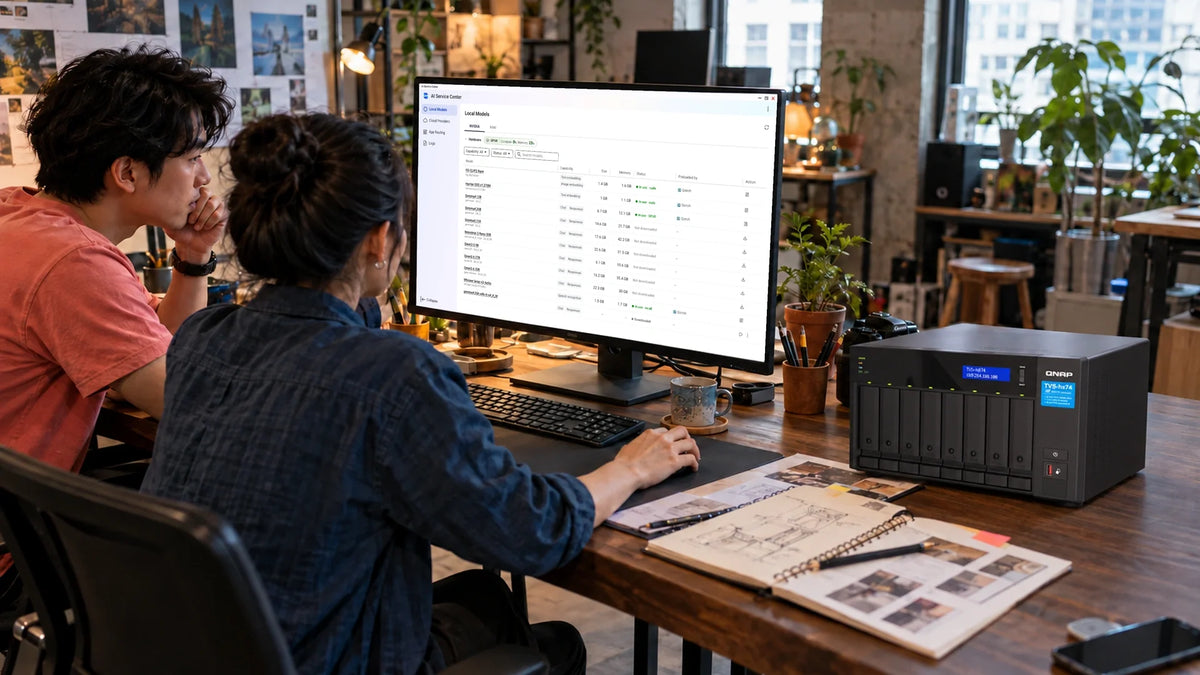
A NAS can support local AI, but spare terabytes are not enough to run a useful language model. The model needs compatible software, compute and working memory. For many offices, keeping files on the NAS and running AI on a separate computer is the most practical starting point. Run the model on the NAS only when the hardware and workload fit.
You want to ask, “Which project drawing is the latest?” or “Find the maintenance notes mentioning this pump.” The files already sit on a NAS, so installing a chatbot there sounds like an obvious next step. Yet a model that downloads successfully can still respond slowly, exhaust memory or search the wrong document revision.
Plan two jobs separately: storing and finding the information, and running the model that interprets the question. They can live on the same machine, but they do not have to.
Three Ways to Use AI with NAS Files
1. Model on the NAS
NAS files → Local runtime → Answer
The NAS supplies storage and compute. Useful when its processor, memory and supported acceleration suit the model.
Check: runtime compatibility and the effect on ordinary NAS services.
2. Separate AI Computer
Restricted NAS share → AI computer → Answer
The NAS remains the file store. A workstation or server supplies the CPU, RAM or GPU for inference.
Check: access permissions, indexing and the network path.
3. Cloud AI Connection
Selected NAS content → Cloud service → Answer
The model runs outside the site. This can reduce local compute needs, but requests and selected content leave the local environment.
Check: data handling, access controls and recurring usage cost.
“Local” should describe where the actual processing happens. A chatbot opened from the NAS dashboard may still use a cloud model. Equally, an AI computer in the same office can process NAS documents locally without the NAS itself running inference.
For document questions, a retrieval system usually finds relevant passages and provides them to the model. This is commonly called retrieval-augmented generation, or RAG. It is not the same as training a new model on every file. A chatbot also does not automatically gain accurate access to every folder simply because the files are nearby.
RAM, VRAM and Model Size: What the Numbers Mean
Model parameters are the stored numerical weights used during inference. Quantisation represents those weights with fewer bits. As a first calculation, divide parameter count × bits per parameter by eight to estimate the weight storage in bytes. Runtime formats add their own overhead.
| Model Size | 4-Bit Weight Arithmetic | Why This Is Not a RAM Specification |
|---|---|---|
| 3 billion parameters | 3 billion × 4 ÷ 8 ≈ 1.5 GB | Add runtime, context memory, buffers and the operating system. |
| 7 billion parameters | 7 billion × 4 ÷ 8 ≈ 3.5 GB | An available 3.5 GB does not mean a 7B model will run comfortably. |
| 12 billion parameters | 12 billion × 4 ÷ 8 ≈ 6 GB | Model architecture, quantisation format and context change actual use. |
| 20 billion parameters | 20 billion × 4 ÷ 8 ≈ 10 GB | Leave capacity for other NAS services and concurrent work. |
These are decimal-GB calculations for the weights only, not measured performance or purchasing minimums. A model file, system RAM and GPU memory are different resources. A discrete GPU normally has its own VRAM; fitting weights on the NAS disks does not mean they fit in that VRAM.
Longer conversations and larger documents increase the context the model must handle. Multiple simultaneous users can increase memory demand again. Ollama’s loaded-model status can show CPU, GPU or mixed placement. Test the model at the intended context and user count rather than judging from the smallest demonstration prompt.
QNAP and Synology: Check the Actual Software Route
QNAP Container Station and Ollama
QNAP’s Ollama deployment guide specifies Container Station 3.x or later, generally an x86-64 Intel or AMD NAS, and only limited ARM support. Its starting memory examples are 8 GB for a 3B model and 16 GB for a 7B model, with at least 20 GB free beyond the model file. A compatible NVIDIA GPU is optional for that container route. These starting points do not reserve memory for every other application on a busy NAS.
QNAP AI Service Center
AI Service Center is currently presented as Beta. Its requirements list QTS 6.1.0 or QuTS hero h6.1.0 and later. Local Models requires an x86 system with a verified GPU and the matching runtime/model packages; supported ARM64 models use Cloud Providers instead. This is a different support boundary from a CPU-only Ollama container.
QNAP’s QuAgent setup guide includes the TS-x74 family, such as the TVS-h874, among local-model candidates with a validated NVIDIA or Intel GPU. Verify the complete NAS, firmware, accelerator and runtime combination. A PCIe slot or an “AI” product name alone does not establish that combination.
Synology Container Manager or a Separate AI Host
The eight-bay Synology DS1825+ is a storage example for this workflow. Check Container Manager availability for the installed DSM release and the container’s processor architecture before hosting a runtime. Package support alone does not establish GPU acceleration or guarantee a language model’s response speed. A separate AI host with access to a restricted NAS share can be a better fit when the NAS is already busy serving files and backups.

An eight-bay expandable x86 platform to assess for a validated local-model configuration. Verify the exact accelerator and software route.

Eight-bay DSM storage for datasets, documents and indexes. A separate AI computer can provide the inference hardware.
What to Put on SSD, What to Keep on the NAS
Separate the original documents from model downloads, search indexes and temporary working files. Keep model files and frequently used indexes on suitable SSD storage where supported. An SSD can reduce loading and random-access delays, but it cannot supply missing RAM or turn a CPU-only NAS into a fast GPU server.
Budget for model versions, extracted text, embeddings, logs and working space as well as the original files. Index size depends on the documents and software. There is no reliable universal rule that every AI index will add a fixed percentage to your NAS capacity.
With a separate AI computer, the network carries file reads and index updates. Determine where the runtime and index actually reside before buying a faster switch. If inference is compute-bound, a 10GbE link will not by itself make each generated word arrive faster. The NAS transfer-speed guide helps isolate the storage and network parts.
The File Search Must Respect Permissions
A Useful Document Answer Needs More Than a Model
- Approved source files
- Searchable text and index
- Permission check
- Answer with source
A service account that can read every department’s files can create an index that is broader than an ordinary employee’s access. Folder permissions are not enough if the AI application later serves those indexed passages to anyone who can open its chat page.
Start with a dedicated read-only share and test user-level filtering during retrieval. Check whether deleting a file, changing its access rights or replacing a revision removes the old content from the index and cached answers. Include the index and application configuration in the recovery plan; they can hold sensitive extracted content even when the originals remain protected.
Keep the runtime on a restricted local network with appropriate authentication. Do not expose an unauthenticated model endpoint through router port forwarding. Review any cloud fallback, embedding service and external connector separately. A local language model does not make every surrounding service local.
Agents that can rename files, change permissions or configure backups need a different approval boundary from read-only search. Begin with recommendations and controlled actions. The AI-assisted NAS security review guide covers using an assistant to investigate warnings without treating every generated instruction as a configuration change.
A Practical Pilot Before Buying More Hardware

- Choose one task: for example, finding maintenance procedures in a small approved document set. Avoid starting with every shared folder.
- Prepare five known questions: include a normal lookup, an old revision, a missing answer, a restricted document and a scanned PDF that needs OCR.
- Run one user first: record the model, quantisation, available RAM/VRAM, context and response time. Check that citations open the correct source.
- Repeat during ordinary NAS work: check file access, backup jobs, memory pressure and responsiveness. Then add the intended concurrent users.
- Test change and recovery: replace a document, remove permission, delete a test file and restore the application configuration. Check that the resulting answers follow those changes.
For scanned files, OCR and searchable NAS documents is the next dependency. Photo organisation is a separate workload, covered in Synology Photos and QNAP QuMagie.
Start with the architecture, then buy the missing resource. Keep a suitable existing NAS as the file store when a separate AI computer solves the compute requirement. Choose NAS-hosted inference when the supported hardware, memory budget and day-to-day workload justify it. A good pilot should prove useful answers, controlled access and acceptable impact on normal work before the system grows.
Frequently Asked Questions
Can I run a language model directly on my NAS?
Possibly. Check the processor architecture, supported runtime, available memory and any accelerator requirements. A compatible container can provide a route, but practical response speed and the effect on NAS services must still be tested.
Is 8 GB of NAS memory enough for local AI?
It may be a starting point for a small model in a supported configuration. QNAP’s Ollama guide uses 8 GB for 3B models and 16 GB for 7B models. Context, runtime overhead and other NAS applications also consume memory, so installed RAM is not all available to the model.
Do I need a GPU?
Not for every runtime: CPU inference is possible in supported configurations. A suitable GPU can improve inference, but its support and VRAM matter. QNAP AI Service Center Local Models has its own verified-GPU requirements, distinct from CPU-only container deployment.
Can a Synology or QNAP NAS store files for an AI computer?
Yes, a separate computer can use approved files from an accessible NAS share. Plan read permissions, index location and update behaviour. This separates storage expansion from the choice of AI compute hardware.
Does local AI automatically keep every document private?
No. Check the entire workflow, including embeddings, cloud fallback, connectors, logs, indexes and who can query them. Enforce access during retrieval, not only when the index is first created.
Will SSDs or 10GbE make the chatbot much faster?
They may help model loading, file access or indexing when those are the bottleneck. They do not replace adequate RAM, supported compute or a suitable model. Measure the slow stage before upgrading.


