
Pag-iimbak ng Data
FireCuda Forge Explained: SSD Caching, 20TB Storage and USB4
A large library, a smaller active workload and one drive letter: understand FireCuda Forge’s Alkemi cache, the SSD you must add and the USB4 connection it needs.
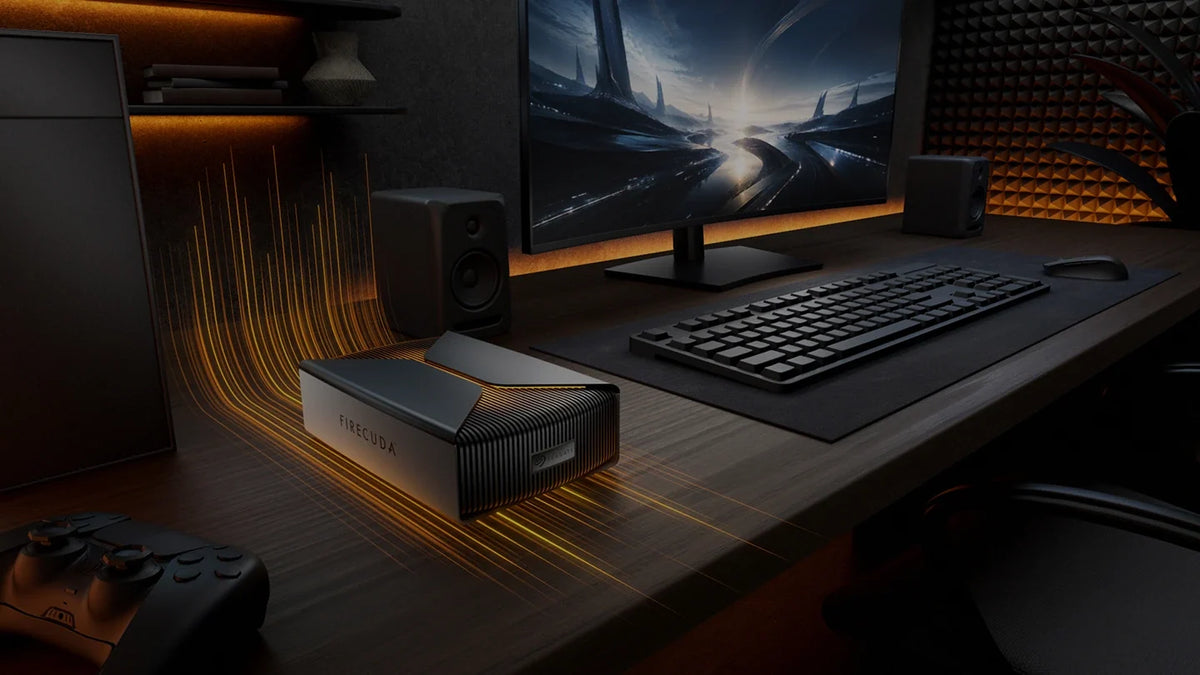
FireCuda Forge combines a large HDD library with an automatically managed NVMe SSD cache, presented as one USB4 drive. It is designed for changing game libraries and creative projects, where a smaller set of files gets regular use. The essential buying detail: a compatible SSD is required, sold separately and does not add to the advertised 8TB or 20TB capacity.
Your drive is full, but replacing the whole library with SSD storage feels excessive. You play a few games regularly, keep older titles installed and collect recordings along the way. Or you edit one project while keeping previous shoots nearby. Moving the active files between an HDD and an SSD becomes another job to remember.
Seagate announced FireCuda Forge on 10-Nov-26 to address that split. Its Alkemi technology manages the cache inside the device. The useful question is whether that approach fits your working files, computer and budget.
How Alkemi Makes Two Storage Roles Feel Like One Drive
A conventional two-drive arrangement gives you separate places to manage: fast storage for current work and a larger HDD for the rest. Forge instead presents one volume. Alkemi observes access patterns and prioritises frequently used data on the installed SSD, while the HDD supplies the library capacity.
The cache management runs within Forge rather than asking you to sort files into a separate SSD folder. That is the practical change: less manual movement as the games or projects you use most change over time.

Cache is not the same as guaranteed SSD performance for every file. A first visit to a game, a new project or a large collection of previously unused footage can behave differently from repeated access to files already benefiting from the cache. Changing the workload changes what is useful to retain there.
The SSD to Add: Why 1TB Is the Sensible Starting Point
Forge is not ready to operate with only the included HDD. You must install a compatible SSD before first use. Include that SSD in the complete purchase cost, even if you intend to reuse one you already own.
| What to Check | Seagate's Requirement or Guidance |
|---|---|
| Physical type | M.2 2280 NVMe, without a heatsink. An M.2 SATA SSD is a different interface. |
| PCIe generation | Gen3 or later. Gen4 and later are supported, but do not improve performance over a suitable Gen3 SSD inside Forge. |
| Rated SSD speeds | At least 2,400MB/s read and 2,000MB/s write. DRAM cache is recommended. |
| Capacity | 1TB recommended. Larger SSDs are supported, but only up to 1TB is recognised. Smaller SSDs are supported with potentially reduced performance. |
| Cooling and tools | Use the included thermal pads. The supplied 2mm hex screwdriver opens the enclosure; a PH1 screwdriver for the M.2 screw is not included. |
If you have an unused 2TB SSD, the manual allows a larger drive, but Forge will not turn that into a 2TB cache. Buying a higher-capacity or newer-generation SSD solely for Forge therefore needs a clear reason beyond its headline specification.
Back up before installing or replacing storage. Preparation erases existing data on the SSD. Replacing either the SSD or HDD also recreates the Forge volume and loses its existing data. Treat this as a planned migration with a separate copy, not a way to swap cache drives around a live library.
What the 2,500MB/s Read Rating Tells You
Seagate rates Forge at up to 2,500MB/s read and 2,000MB/s write with the appropriate SSD and connection. These are manufacturer maximums, not measurements from this guide or a promise for every part of a 20TB library.
The working set matters more than the library total. Consider a library that holds many games but returns to a few favourites, or a video editor reopening the same project assets throughout the week. Those repeated accesses give an adaptive cache something useful to learn. Constantly ingesting different material is a different pattern.

A useful evaluation follows your real workflow: copy a new project, reopen it, revisit the same assets and then switch to another project. Record the SSD, host port, cable and whether this is a first or repeated access. A single short transfer cannot establish how the next large job will behave.
If a familiar USB-C SSD already runs slowly, first use the USB-C drive speed guide to check the connection. Buying a different drive cannot remove a slow host port.
USB4, Thunderbolt and the Windows or Mac Setup
Start with the computer's exact port specification. Seagate specifies USB4 or a compatible Thunderbolt 3, 4 or 5 connection and supplies a USB4 cable with USB-C connectors. The shape of a USB-C socket alone does not tell you that it carries the required connection.
A dock adds another check. It must provide a suitable USB4 or compatible Thunderbolt path; a USB-A-only hub is not an appropriate substitute. When isolating detection, speed or disconnection trouble, connect Forge directly to a supported host port with its supplied cable before adding the dock back.

Seagate lists Windows 11 and macOS 26 or later. Forge initially creates an NTFS volume. Windows can use that format; macOS can read it but cannot natively write to it. For a Mac-only workflow, choose an appropriate Mac format. For sharing files between Windows and Mac, exFAT is an option, but it is not the native format for Time Machine or Windows File History.
Choose the file system before filling the drive, back up before reformatting and eject it safely. Keep Toolkit features distinct too: Seagate documents RGB customisation and its backup-plan feature for Windows, while its mirror-folder feature is available on Windows and Mac. Mirroring changes, including deletions, is not the same as keeping older recoverable versions.
Ordinary HDD, External SSD or Forge?
| Your Main Need | Useful Starting Point | Trade-off to Weigh |
|---|---|---|
| Bulk storage and occasional copies | An ordinary external HDD | Simpler purchasing and no separate cache SSD to add. Repeated interactive access remains an HDD workload. |
| An entire active dataset needs fast access | An SSD-based setup sized for that dataset | Compare capacity and sustained workload behaviour, as well as the host connection and complete price. |
| A large library with a smaller changing active set | FireCuda Forge with a suitable SSD | One managed volume, but performance depends on caching. Include the required SSD, power and host compatibility. |
For a straightforward high-capacity alternative, compare the Seagate Expansion Desktop USB-C range. The useful comparison is the complete setup for your workload, rather than choosing the biggest speed number on the box.

Choose the HDD capacity, then add the compatible NVMe SSD required for operation. Check the exact host connection before ordering.
A Complete Setup, With a Separate Recovery Copy
Choose Forge for the convenience of a large managed library when a smaller active workload benefits from caching. Choose an ordinary HDD when the job is mainly economical bulk storage, or an SSD-based setup when the whole active dataset needs fast access without relying on cache placement.
Before ordering, confirm the 8TB or 20TB model, a suitable SSD without a heatsink, a supported computer port and operating system, and the format you will use. Keep a separate backup destination. The HDD and cache are parts of one device, not two independent recovery copies.
Frequently Asked Questions
Does FireCuda Forge include the SSD?
No. It includes the HDD, but you must supply and install a compatible M.2 2280 NVMe SSD without a heatsink before using Forge. A 1TB SSD is recommended.
Does a 1TB cache turn the 20TB model into a 21TB drive?
No. The HDD determines the nominal volume capacity. The SSD is a cache and does not add to the space presented to the computer. Formatted available capacity is lower than the nominal HDD capacity.
Can I install a 2TB SSD or a PCIe Gen5 model?
The manual supports SSDs above 1TB, but Forge recognises only up to 1TB. PCIe Gen4 and later SSDs are supported without a performance improvement over a suitable Gen3 SSD inside Forge. All other SSD requirements still apply.
Will every USB-C computer run Forge at full speed?
No. Check the actual port specification, not only the connector shape. Seagate specifies USB4 or a compatible Thunderbolt 3, 4 or 5 host connection, with an appropriate cable and dock if used. Workload and cache state also affect speed.
Can I replace the SSD without erasing the existing Forge library?
Seagate states that replacing either the installed SSD or HDD recreates the combined volume and loses its existing data. Back up the library and any data on the replacement SSD first.
Is the SSD cache a backup or RAID mirror?
No. The SSD cache and HDD work together within one device. Keep a separate recoverable copy of important data; a cache does not protect against loss of the complete device, accidental deletion or every hardware failure.


