
Docking Stations
Build a One-Cable Laptop Desk: USB-C Charging, Displays and Dock Limits
A desk that connects in one motion starts with the laptop port. Match video, charging and peripherals before choosing an impressive port count.
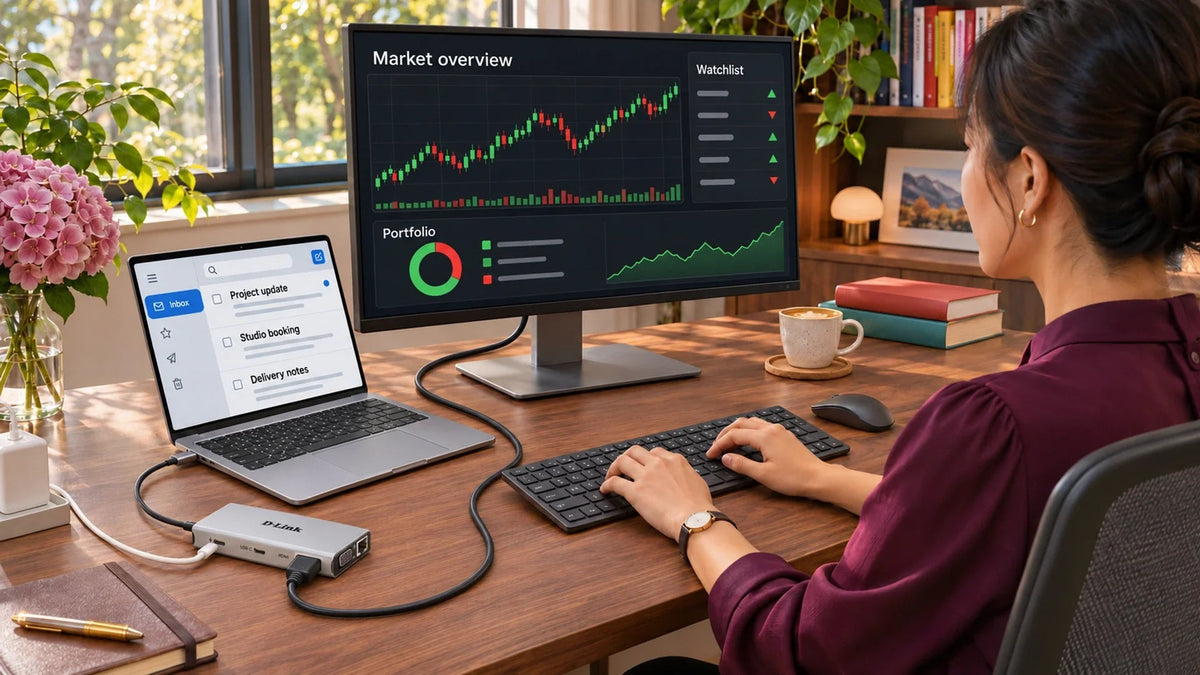
A one-cable laptop desk works only when the host USB-C port supports the functions you need: data, display output and, if required, USB-C charging. Match the charger, hub and monitor as one system. A hub marked 100 W does not mean every laptop receives 100 W, and two display sockets do not automatically provide two independent desktops.
The attractive part is the routine: put the laptop down, connect one lead and start work with a proper screen, keyboard and mouse. The frustrating version looks the same but produces a blank monitor, a charging warning or a battery that slowly falls during a long call.
Choose the experience first. Do you need one external screen, a wired network and ordinary peripherals, or a workstation driving several high-resolution displays? Those are different requirements.
One Connector, Three Separate Questions
USB-C describes the connector shape. The laptop’s documentation must confirm its data capability, video support and power-input capability. A matching socket alone does not answer any of those questions.
Trace Video and Power Separately
A matching USB-C connector does not prove every function.
01 Video and data
Confirm the host portDisplayPort Alt Mode, display limits and data capability must match the intended desk.
02 The charging path
100 W is a maximum capabilityThe charger, cable and laptop determine the usable arrangement; the hub does not create power.
For a conventional USB-C video hub, check for DisplayPort Alternate Mode on the actual laptop port. Some computers offer different functions on otherwise similar-looking sockets. Charging support also belongs to a particular host port, and some high-power laptops still need their original power adapter.
If video is already failing, the USB-C to HDMI troubleshooting guide works through that branch. Avoid buying a second hub before proving that the host can supply video through the chosen connection.
Follow the Power Path Before Trusting the Wattage
The charger supplies power through a suitable cable to the hub’s PD input, and the hub negotiates delivery to the host. The hub and attached equipment also consume power. The charger rating, supported cable, hub limit and laptop’s accepted charging profile all matter.

A 45 W charger cannot become a 100 W supply because a hub is rated for 100 W. Likewise, a laptop that requires more power under load than the negotiated supply provides may charge when idle but lose battery during demanding work.
Read the laptop’s charging status after connecting the intended peripherals. Use the proper cable for the negotiated power; do not assume that every USB-C lead supports the charger’s maximum rating. Avoid guessing a fixed power deduction for a hub whose manufacturer has not specified one.
Choose the Display Mode, Not Just the Socket Count
Specify the external screen’s resolution and refresh rate, then check the whole video path. A supported 4K60 connection depends on the host, hub, cable and monitor, not the HDMI label alone. Different USB-C implementations can also share resources differently between video and USB data.
| Desk Requirement | What to Confirm |
|---|---|
| One external 4K screen | The host and complete video path support the required 4K refresh rate. |
| Two independent external desktops | Explicit support for that host, operating system and dock output combination. |
| An older VGA display | The supported analogue resolution and whether it meets the actual reading task. |
| Laptop open beside a monitor | Comfortable screen arrangement, keyboard access and the intended extend or mirror mode. |
Do not infer independent extended displays from the presence of both HDMI and VGA. Host display limits and the dock’s combined-output behaviour must be verified. A dual-screen requirement may call for a different docking technology rather than another adapter.
D-Link or TP-Link: Match the Hub to the Desk
The D-Link DUB-M1150 brings display, wired networking, peripherals and cards together. Its options include HDMI up to 4K60, VGA up to 1080p60, Gigabit Ethernet and USB-C PD capability up to 100 W.
The TP-Link UH7020C is a useful alternative for a lighter desk. It combines HDMI up to 4K60, SD and microSD slots, two USB-A data ports, one USB-C data port and a separate USB-C PD input rated up to 100 W. Its data ports support signalling up to 5 Gbps. It does not include Ethernet or VGA.

A compact hub can simplify arrival at the desk. Confirm the laptop port and required output modes before choosing it.

A compact HDMI, card-reader and USB hub when Ethernet and VGA are unnecessary. Match the host port and charger to the desk.
| Connection | D-Link DUB-M1150 | TP-Link UH7020C |
|---|---|---|
| External display | HDMI up to 4K60; VGA up to 1080p60 | HDMI up to 4K60 |
| USB data ports | Three USB-A and one USB-C | Two USB-A and one USB-C |
| Wired network | Gigabit Ethernet | No Ethernet socket |
| Removable cards | SD and microSD slots | SD and microSD slots |
| USB-C power | PD capability up to 100 W | PD capability up to 100 W |
Choose the D-Link when wired Ethernet, VGA or the extra USB-A socket is part of the actual desk. Choose the TP-Link when HDMI, cards and ordinary USB peripherals cover the job. Neither socket count nor a 100 W label guarantees full-rate laptop charging or every multi-monitor arrangement.
Let either hub rest on the desk with room for complete plugs and cable bends. Keep the attached host lead free of strain, connect the monitor cable to the hub’s HDMI socket and the PD charger to the charging input. For different tasks on the two screens, select an extended desktop rather than mirroring them, subject to the computer’s display support.
Check the package contents and the host’s video and charging capability before ordering. Neither compact option should be treated as a promise of Thunderbolt bandwidth or two independent external monitors.
Keep Shared Connections Within Their Job
A collection of USB sockets does not multiply the host link’s bandwidth. Several fast storage devices, an Ethernet connection and other peripherals share parts of the hub’s upstream path. A port’s signalling rate is not a guaranteed file-transfer result.
Gigabit Ethernet can provide a dependable wired desk connection, but it cannot deliver a 2.5GbE or 10GbE link. If large storage transfers are the main workload, specify that requirement separately instead of assuming the biggest socket count is the fastest choice.
Use accessible cable routes, keep ventilation open and leave space to disconnect a device without pulling every lead. The simple arrival routine is the benefit; hiding cables so aggressively that the hub overheats or hangs behind the desk defeats it.
Test the Arrival Routine Before Settling the Desk
- Record the laptop model, operating system, chosen host port and charger rating.
- Connect the hub and one external display first. Verify resolution, refresh rate and the intended extend or mirror mode.
- Check recognised charging power or charging status where the computer exposes it.
- Add the keyboard, mouse, network and storage one at a time, then try the actual workload.
- Test unplugging, reconnecting and waking the laptop with the desk equipment attached.
- Review the desk with the laptop in its normal working position, including cable strain and comfortable reach.
If a symptom begins only after adding one peripheral, remove that item and repeat before resetting everything. Keep a short list of the working charger, cables and display settings so the setup remains repeatable.
Buy for the complete desk. A well-matched USB-C hub can make work feel simpler every day. Choose a different dock when the host, display count, power requirement or transfer workload exceeds the compact hub’s documented capability.
Frequently Asked Questions
Will any USB-C laptop work with a video hub?
No. The relevant host port needs the video capability required by the hub, such as DisplayPort Alternate Mode. A data-only or charging-only socket is insufficient.
Does a 100 W hub include a 100 W charger?
Do not assume so. Check the package contents and select an appropriate USB-C PD charger and cable separately where required.
Why does the battery fall while the laptop says it is charging?
The available negotiated power may be lower than the computer consumes under that workload. Compare the charger, cable, hub and laptop charging requirements.
Can HDMI and VGA always show two separate desktops?
No. Verify the dock’s combined-output behaviour and the host’s display limits for the exact operating system and computer.
Will this Gigabit Ethernet socket deliver 2.5GbE?
No. Gigabit Ethernet is a 1GbE interface. Choose an appropriately specified alternative when the actual desk requires a faster network link.
Should the hub hang from the laptop port?
No. Let it rest on a suitable surface, with enough room for plugs and cable bends so the connector does not carry the hub and cable weight.


