
Backup
Can You Reuse Your NAS Drives? A Synology Migration Checklist
Existing NAS drives may be reusable, but physical fit is only one check. Compare three Synology migration routes, protect the source data and plan how files, permissions, applications and backups will be validated after the move.
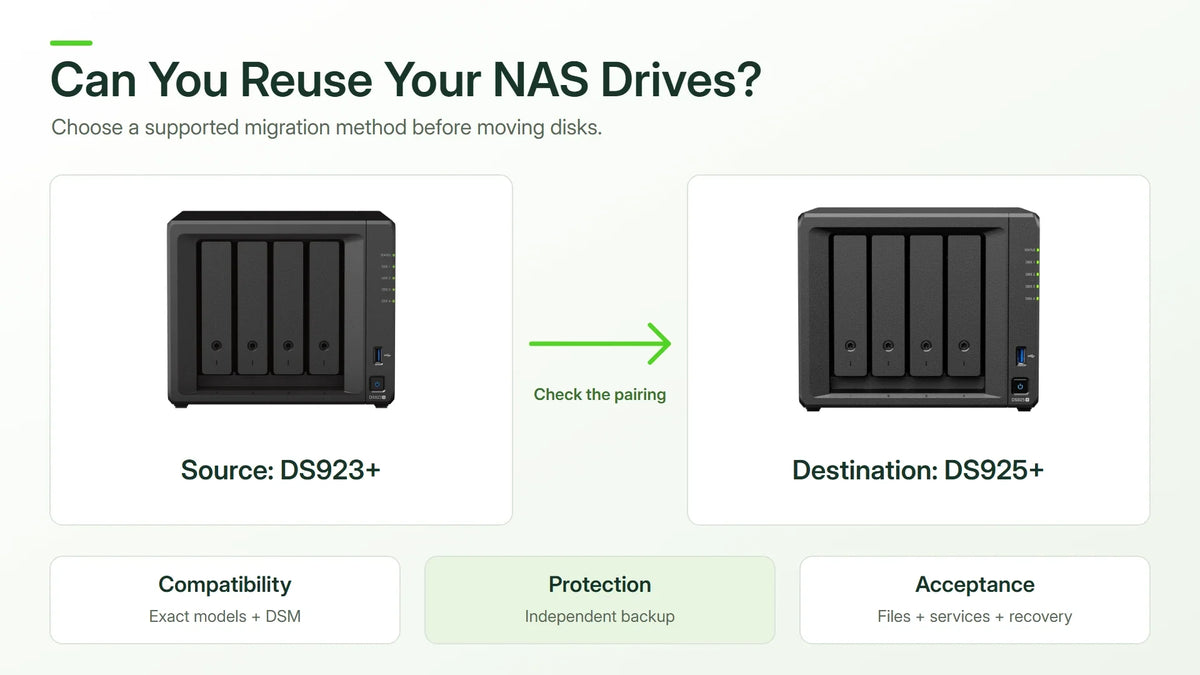
Quick answer: you may be able to reuse existing Synology NAS drives, but moving them is only one migration method. Check the source and destination models, DSM versions, drive compatibility and complete storage-pool arrangement. Where direct HDD migration is unsuitable, a supported Migration Assistant copy or a Hyper Backup restore can provide a different route.
The useful goal is not simply to make a new enclosure recognise old disks. It is to bring the required files and services into a known working state, with an independent recovery copy still available. That calls for a short migration plan before the first drive is removed.
Highlights
- Identify both NAS models. Bay count alone does not prove a supported migration pairing.
- Protect the source first. A disk set being moved is not an independent backup of itself.
- Choose the route deliberately. Reusing disks, copying to new disks and restoring a backup solve different constraints.
- Preserve the complete pool. Record the existing arrangement and original bay order.
- Test the business workflow. Files appearing in a folder is only the start of acceptance.
Start with an Inventory You Can Use Offline
Record the source model, DSM version, drive model numbers, serials, firmware, capacities and bay positions. Add the storage pools, RAID or SHR arrangement, volumes, file systems and used space.
Keep that record outside the NAS. During a cutover, the source may be switched off or its normal network address unavailable. A simple saved inventory prevents basic identification questions from turning into guesswork.
List the services people rely on: shared folders, accounts and groups, permissions, backup jobs, synchronisation, surveillance, virtual machines, containers or other packages. Include the current way users reach the system, such as mapped drives, a hostname or an application address.
Three Migration Routes Compared
| Method | What Moves | When to Examine It |
|---|---|---|
| HDD migration | An eligible original drive set is transferred to a supported destination. | The disks remain suitable and the model pairing and storage arrangement qualify. |
| Migration Assistant | Supported data, settings and packages are copied across the network to destination storage. | New destination drives are being installed and both systems can participate. |
| Hyper Backup restore | Selected backed-up data and supported application settings are restored. | A restore-based move or a different destination layout is more appropriate. |
Each route has exclusions and version requirements. “Supports migration” is not the same as “every package, licence and network setting transfers automatically”. Confirm the requirements for the chosen method and the services in the inventory.

Check Drive Compatibility and the Device Pairing Separately
A disk can be acceptable for a destination without the original system being eligible for a direct HDD migration. Conversely, the existence of a supported model pairing does not make every disk suitable for it.
The Synology drive compatibility guide separates HDD, SATA SSD and M.2 NVMe considerations. Use it alongside the current migration requirements, not as a substitute for checking the source-to-destination pairing.


Do not treat one disk removed from a multi-drive pool as a complete transferable system. Preserve the original arrangement and identify all members of the relevant pool before planning a physical move.
Make the Recovery Copy Independent
Before a change, confirm that a current backup exists outside the drive set being moved. Test a representative restore to a separate location and check that the result opens correctly. A backup job reporting success is useful, but it is not the same evidence as a completed restore.
Keep encryption keys, passwords and necessary recovery material available through the authorised process. Do not leave the only copy of a required key inside the system that will be offline.
For data that matters, retain more than one recovery route where practical. The business ransomware protection guide explains why recoverable copies and access controls belong together.
Plan Destination Capacity Before Copying
When installing fresh drives, calculate the destination's usable capacity after its redundancy and reserve. A new box with more bays is not necessarily ready to receive all the source data in the chosen layout.
For a worked example, 9 TB of used data plus a chosen 20% working allowance gives 10.8 TB. That allowance is an initial planning assumption, not a sizing rule for Migration Assistant. Its requirements are based on the source storage-pool arrangement, so used data alone may not be enough to size that route.
Synology's Migration Assistant workflow calls for a destination storage pool equal to or larger than the source pool. Check the actual pool sizes and supported file system before choosing destination drives. A restore-based method may be more suitable where the storage layout or file system is deliberately changing.
How Long Should a Migration Take?
Separate transfer time from the total maintenance window. Inventory, backup validation, disk preparation, package work, cutover and acceptance all consume time beyond the data copy.
At a sustained application rate of 100 MB/s, copying 10 TB of decimal data takes about 27.8 hours in arithmetic terms. At 250 MB/s it takes about 11.1 hours. These are planning calculations, not measured performance promises for a DS923+, DS925+ or a particular migration tool.
Small files, busy disks, encryption, network conditions and other work can lengthen the process. Use a representative test to estimate a realistic rate, then keep time for validation and a decision point if the result is not acceptable.
Prepare a Controlled Cutover
- Agree which users and services must stop changing data and when.
- Confirm the backup and recovery material before the maintenance window.
- For an approved physical move, document and preserve original drive order and follow the exact model-specific shutdown procedure.
- Use the selected migration method without treating unexpected prompts as routine.
- Reconnect clients through the intended network identity and test the required services.
- Keep the recovery copy and migration record after acceptance.
If setup proposes erasing or formatting drives that contain the only required data, stop and resolve the mismatch before continuing. Synology's HDD migration guidance specifically warns against continuing through an unexpected data-deletion prompt.
What to Test Before Calling the Move Complete
Use a short acceptance list that follows how the NAS is used. Open files from representative shares, check access with the correct user roles and confirm that the required applications start and behave as expected.
Verify scheduled backup destinations and run a new backup where appropriate. Test a restore from the new system's protection plan. If surveillance or another licensed service is involved, check its own device, licence and application requirements separately.
Confirm storage health and capacity, time settings, notifications and the documented way clients reconnect. Review any remaining indexing, synchronisation or maintenance tasks before assuming background work has finished.
Include power protection in the new arrangement. The UPS runtime and safe-shutdown guide helps identify the NAS, switch and status path that need to remain powered together.
Frequently Asked Questions
Can I move drives into a NAS with the same number of bays?
Bay count is only a physical requirement. The model pairing, DSM versions, drives and original storage arrangement must also qualify for the intended method.
Will reusing the disks change the file system?
A physical drive move is not a file-system conversion plan. Where a different file system or layout is required, assess a supported backup-and-restore route.
Does Migration Assistant copy every setting?
No. Check its current exclusions, including relevant network, account, licence and package considerations, and plan those separately.
Can I retire the old NAS as soon as files appear?
Wait until the agreed file, permission, application and recovery checks pass. Keep the independent backup and record the accepted state.
What information is needed to plan a migration?
Provide both model names, DSM versions, complete drive identifiers, pool and file-system details, used and allocated capacities, required applications and the acceptable outage window.
Choose the Route Before the Enclosure
Compare Synology NAS options around workload, growth and the supported migration route. A clear inventory, independent backup and tested acceptance plan make an upgrade easier to assess than the assumption that the disks can simply be moved.


