
CCTV
CCTV Works on WiFi but Not Mobile Data: Restore Remote Viewing
A working local picture does not prove remote access is ready. Trace the phone, app and camera-site connection separately, then test live view and recorded playback.
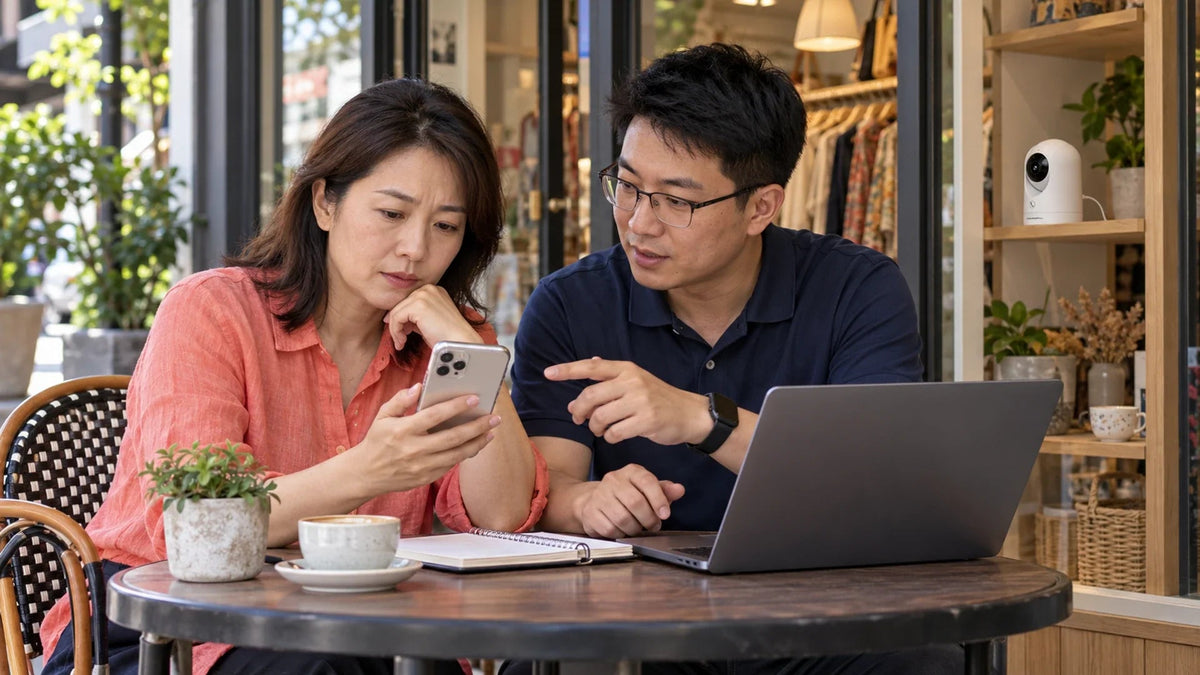
If CCTV works on the camera’s WiFi but not on mobile data, test the phone’s internet access, app data permission and the camera or recorder’s remote-access path separately. Local viewing can succeed even when the site has no working internet route. Confirm the correct app account and device entry before changing router ports or resetting a working camera.
The owner can see the shop from the counter, then gets a connection error after leaving. The camera may still be recording normally. What changed is the route between the viewer and the system: the phone is no longer on the same local network.
Keep that distinction throughout the diagnosis. A remote-viewing failure, a camera that has lost power and a recorder that has stopped storing footage are different problems. Establish which one is actually present.
Compare a Local Picture with a Genuine Remote Test
While onsite, check live video and a recent recording. Then turn off the phone’s WiFi for a controlled mobile-data test. Confirm the phone can open an ordinary website over that connection. A phone silently reconnecting to the shop WiFi would invalidate the remote test.
Make a simple record of the camera or recorder name, the app used, the time and which operation failed. Live view, playback and notifications may use different parts of the platform. “The app does not work” is much less useful than “live view opens onsite; recorded playback fails over mobile data”.
If video is missing locally as well, return to camera power and network troubleshooting. Remote account changes cannot repair a camera that has no stable local connection.
Trace Both Ends of the Remote Picture
A camera can work locally while either internet path fails.
01 The Viewer
Phone and AppCheck data permission, account and the actual external connection.
02 The Camera Site
Site Internet RouteCheck the gateway, destination reachability and platform state.
03 The Remote Service
Supported AccessUse the correct platform, permissions and suitable viewing quality.
Check the Phone and the Account First
Confirm that the app is allowed to use mobile data in the phone’s settings. Review any WiFi-only viewing preference in the app. Labels and available controls differ between camera and NVR apps, so check the one actually installed rather than a screenshot from a different product.
Verify that the owner is signed into the intended account and has permission to view the correct site. A shared invitation may grant less access than the owner account. Do not share the administrator password simply to avoid setting up proper viewer access.
Compare with another authorised phone or a different external connection. If only one phone fails, focus on that phone, app and account. If every external connection fails but onsite viewing works, investigate the site’s internet route and the platform’s remote-access state.
Prove Internet Access at the Camera Site
A working local WiFi network does not prove that the router can reach the internet. Check the site’s broadband status and whether a recent router, provider or network change affected the camera or recorder. Confirm the intended gateway and DNS configuration through the supported interface.
For a Foscam camera using its supported P2P service, check that the relevant remote function is enabled and that the current app and camera software are compatible. For UniFi Protect, investigate the console and authorised remote-access path rather than looking for a Foscam UID setting. These are different platforms.
A strict firewall, a double-router arrangement or a mobile broadband service can change the connection path. Identify the topology before altering it. Carrier-grade NAT does not automatically prevent every vendor-supported remote service, and it does not establish that ordinary inbound port forwarding will work.

Use Viewing Quality to Separate a Bandwidth Problem
If the app connects but the picture stalls, try a lower live-view quality where the platform provides one. Foscam’s troubleshooting guidance includes reducing the live feed’s data requirement when the network cannot carry it reliably. Do not assume a high-resolution camera must stream its highest-quality profile to every phone.
A constant 2 Mb/s stream transfers about 900 MB in an hour before overhead. At 8 Mb/s, the equivalent is about 3.6 GB. These are data-rate calculations, not measurements of a named camera. Several simultaneous views can increase the site’s outgoing demand.
Keep required recording quality separate from viewing quality where the platform supports separate streams. If exported footage is also unclear, use the CCTV playback and export guide rather than reducing evidence quality to solve a phone-viewing issue.
Preserve Access Controls While Troubleshooting
Do not put the camera in a router DMZ, disable the firewall or open a collection of guessed ports as a first response. Identify the supported remote method, destination and account permissions. A configuration that works by exposing unnecessary services is not a complete fix.
When an app update or firmware change is justified, preserve the required settings and use a stable connection and power supply. Avoid starting a camera firmware update from an unreliable cellular link. Do not repeatedly factory-reset a functioning recording system to investigate one viewer.
Keep device identifiers, passwords, access codes and detailed network information private. A support enquiry can describe the model, software versions and failing path without putting those details into public comments or photographs.
Finish with Live View, Playback and the Right Platform
The Foscam R8M is an indoor camera example. It belongs inside its intended environment; placing it outdoors does not improve mobile access. UniFi Protect cameras use a compatible Protect host and their own management workflow.

Check local connectivity, the intended account and the supported remote-viewing method for this camera platform.
For a UniFi G5 Turret Ultra installation, include the Protect console and its internet connection in the same test. The camera model alone does not define the complete remote system.
Verify both live video and a recent recording from outside the local network. Repeat with an authorised viewer account and the quality level intended for everyday use. Keep the local recording check as a separate acceptance step, so a working phone picture is not mistaken for proof that footage is being retained.
Frequently Asked Questions
Does a local picture prove the camera has internet access?
No. A phone and camera on the same network can communicate locally while the site’s internet connection is unavailable.
Should I factory-reset the camera first?
No. Establish the failing path and preserve settings. A reset can interrupt recording and will not repair an app permission or site internet fault.
Why does live view work but remote playback fail?
Playback can involve a different recording location, permission or transfer demand. Check the exact operation, account and recorder state.
Can a lower live-view setting help?
Yes, if bandwidth is the issue and the app provides that control. Keep the required recording quality separate and verify both functions.
Will changing the SIM always fix remote access?
No. First determine whether the phone connection, camera-site connection, app or account is failing. A different connection is a diagnostic comparison, not proof that one provider is faulty.
Should I open router ports for every camera?
Use the supported design for the platform. Avoid exposing management services or using DMZ as a quick test; investigate the intended remote service or approved VPN path.


