
Home Security
An Indoor Camera You Can Live With: Privacy Mode, Lens Covers and Recording Checks
A useful home camera should fit the way people live. Decide when it watches, what it sees and who has access, then verify those choices on the device.
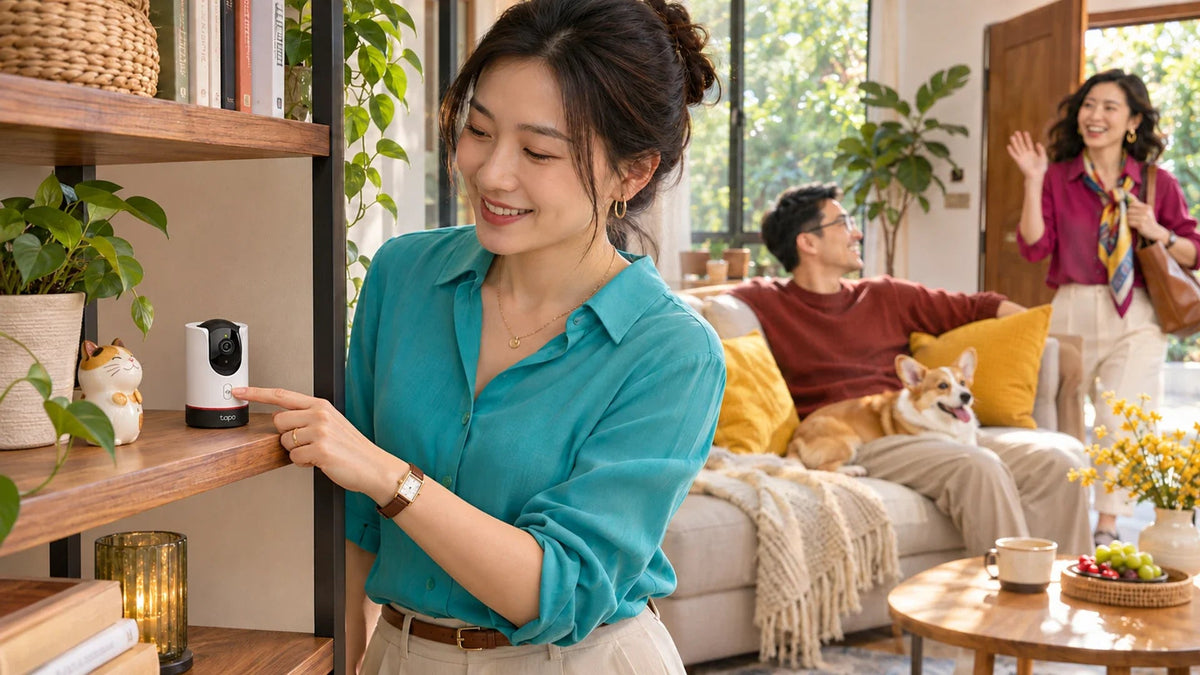
For privacy while you are home, choose a camera with an understandable privacy control and verify that live viewing and recording stop when you activate it. A physical lens-hiding mechanism gives a visible cue, but camera mode, audio, stored footage and account access still need separate attention. Turning off alerts is not the same as turning off monitoring.
You want to check on the living room while travelling, then enjoy a quiet evening without feeling watched. Those needs can coexist. The important purchase decision is how easily the household can move between them, not simply how far the camera can pan.
Plan the camera’s purpose with the people using the room. A clear, visible choice is more comfortable than a device whose behaviour nobody understands.
Four Controls That Do Different Jobs
Privacy mode, privacy zones, activity zones and phone alerts describe different functions. Learn which one changes capture and which one only changes where or when you are notified.
A Quiet Phone Is Not a Privacy Switch
Check the camera state as well as its notifications.
01 Whole-camera privacy
Verify video and audioTest the documented operation on the actual camera and intended viewing paths.
02 Selective controls
Keep the jobs separateA masked area or disabled alert does not imply the whole room is no longer monitored.
| Control | What to Check |
|---|---|
| Privacy mode | Whether live video, audio and recording stop for the whole camera. |
| Physical lens control | How the exact model hides or shields the lens, and how its state is shown. |
| Privacy zone | Which part of the current view is masked, including after pan or tilt changes. |
| Activity zone or alerts | Which events trigger detection or notifications; do not treat this as a full privacy switch. |
A silent phone does not prove an inactive camera. Similarly, a masked part of an image is not a substitute for whole-camera privacy when you do not want the room monitored.
Make the Household Control Easy to Recognise
The Tapo C225 has a physical privacy button and a mechanism that rotates the lens into its housing. This gives the person in the room a visible action instead of relying entirely on a phone setting.

Check the physical control, app behaviour and exact hardware version. Choose a location where adults can operate the control without an unsafe reach.
TP-Link describes Tapo privacy mode as stopping streaming and recording of both video and audio. Use the actual Tapo interface and device state to confirm that operation on your camera. A similar-looking model may offer a different physical arrangement.
Keep the unit stably supported with its cable routed safely. Do not improvise a loose cover that obstructs movement, traps heat or falls off. A purpose-designed control is easier to use consistently.
Check the View from the Room, Not Just the App
Choose a position that covers the intended shared space without unnecessarily including neighbouring windows, private rooms or screens. Pan and tilt increase the possible view; they do not make every direction appropriate.

Where a supported privacy zone is used, check it after repositioning or rotating the camera. A zone tied to the image can move with the view and stop covering the original physical area. Test the actual operating positions rather than assuming one drawn rectangle protects every direction.
If you need a check-in view only while away, define that routine explicitly. Home and Away presets, automations and third-party home apps can expose different controls. Confirm the mode that is actually active rather than relying on the name of a shortcut.
Verify Privacy with a Short Household Test
- Establish normal operation. Check the intended live view and recording arrangement without including private activity in the test.
- Activate privacy. Use the physical button or supported app control and observe the device’s mechanism and reported state.
- Check viewing and recording. Confirm that a fresh live view is unavailable as intended and inspect the relevant recording timeline for the test interval.
- Check sound. Verify the documented privacy behaviour for audio too; hiding an image alone is not an audio test.
- Resume deliberately. Exit privacy and confirm the intended coverage and recording return.
If several apps or an external recorder can view the camera, check those intended paths too. An old thumbnail or a previously downloaded clip is not a new live frame. Keep the distinction clear while checking the result.
Old Footage and Account Access Are Separate Decisions
Do not treat privacy mode as an instruction to erase footage already saved. Review the actual microSD, cloud or exported copies separately, along with who can access them and the retention settings that apply.
Use supported sharing permissions instead of leaving an owner login on a shared tablet or handing out the main password. Review former users and devices when household arrangements change. Protect the account with the security options the platform offers.
If remote viewing is unreliable, investigate that connection separately using the remote camera viewing guide. A failed connection is not a dependable privacy mechanism: it may recover while the camera continues its local recording task.
When choosing between models, ask how privacy is activated, how another resident recognises it and how the system resumes. Those daily questions can matter more than another detection category.
Choose a Routine People Will Actually Use
Try a simple arrangement: normal monitoring when the shared space is empty, a visible privacy action when people want the room to themselves, and a deliberate check before leaving. Use schedules or automation only after confirming support and testing the resulting state.
Check what happens after a planned restart or power interruption when it is safe to do so. Do not assume that a model preserves or changes its privacy state in a particular way. Record the observed behaviour and explain the control to the people who will use it.
For a new camera, choose a model whose recording, sharing and physical controls fit the household. More automated features are useful only if everyone can understand the result.
Security should make home feel more comfortable. Choose a clear privacy control, verify the whole-camera behaviour and manage saved recordings separately. A visible, repeatable routine is easier to trust than an unexplained setting.
Frequently Asked Questions
Does turning off notifications stop recording?
No. Alert settings and recording settings have different purposes. Check the actual privacy and recording state of the camera.
What does the C225 physical privacy button do?
The C225 provides a physical privacy action that rotates the lens into its housing. Confirm the current state and behaviour in the supported Tapo interface.
Does Tapo privacy mode stop audio too?
TP-Link describes privacy mode as preventing streaming and recording of video and audio. Verify the documented behaviour and the test interval on the actual camera.
Will a privacy zone remain over the same room area after panning?
Do not assume that. TP-Link notes that zones can shift with the camera view. Check the positions you actually use after rotation or repositioning.
Does privacy mode delete yesterday’s video?
Do not use it as a deletion control. Review saved local, cloud and exported footage and their retention arrangements separately.
Is a camera that cannot connect to my phone effectively private?
No. Connection failure and privacy mode are different states. The camera may retain local recording or recover its connection later.


