
D-Link
USB-C to HDMI Not Working? Check Video Support Before Buying Another Adapter
A USB-C socket can carry power or data without carrying video. Check the host first, then test the adapter, cable and screen as one path.
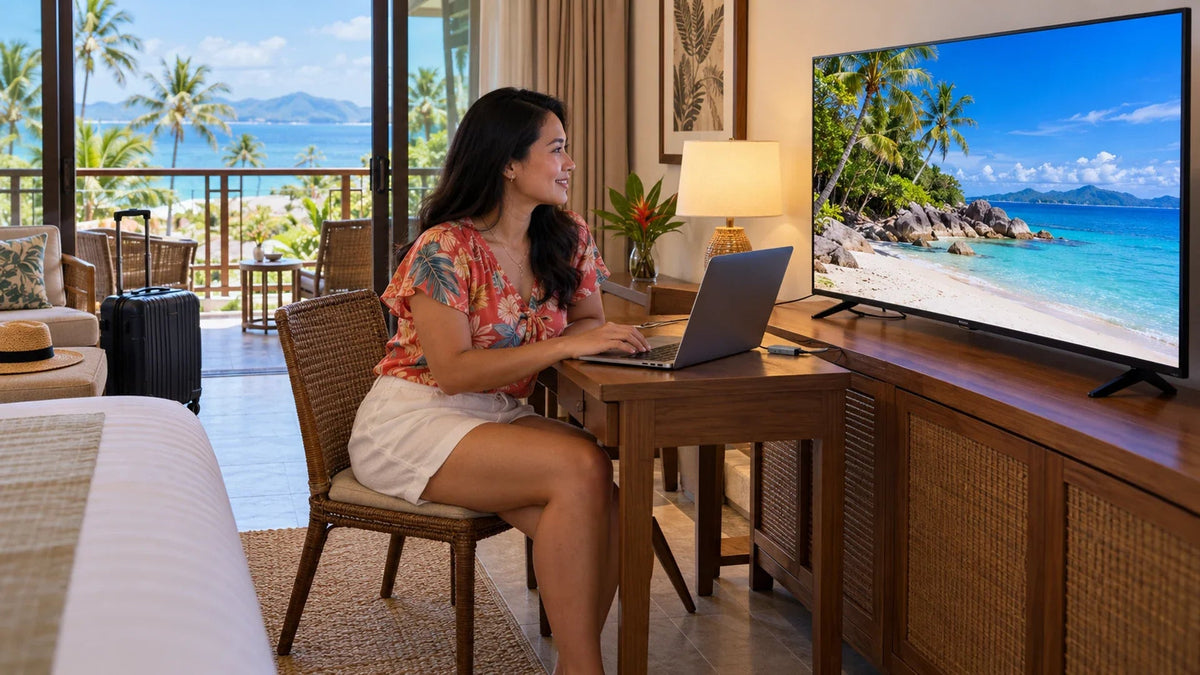
A USB-C-to-HDMI adapter needs a video-capable USB-C port on the computer. For the D-Link DUB-V120, that means DisplayPort Alternate Mode. Check this before replacing the HDMI cable or installing software, then test the selected TV input and a supported display mode.
The laptop charges through USB-C, so the adapter should work, right? Not necessarily. The connector shape does not describe every function behind it. This catches travellers using hotel televisions as often as people connecting a new desk monitor.
Follow the path from the computer to the screen. A simple single-display test is easier to understand than a chain of hubs, extensions and adapters.
Start with the Computer’s Port Specification
Look up the exact computer model and the particular USB-C port you are using. Confirm native display output, rather than assuming it from charging support or a successful file transfer. Different ports on one computer can have different capabilities.
Check the Source Before the Screen
The connector shape does not establish native video support.
01 Host capability
Native video must existA data-only or charging-only connection cannot acquire this function from the DUB-V120.
02 Display connection
4K60 needs the whole pathStart with a supported simple mode, then check the higher-resolution chain.
The DUB-V120 carries the host’s native DisplayPort video to HDMI. It is not a USB graphics device that adds video to a data-only port. A charging cable or another dongle cannot create a missing host function.
If the computer does not support the required video output, choose another documented display connection or a graphics solution explicitly supported by that host. Do not buy another identical native-video adapter expecting a different result.
Test One Adapter, One Cable and One Screen
| Part of the path | Check | What it rules out |
|---|---|---|
| Computer | Use a documented video-capable port | A data-only or unsuitable host connection |
| Adapter | Connect it directly for the first test | An extra hub or extension causing confusion |
| HDMI cable | Use a known-working cable suited to the intended mode | A damaged lead or unsupported display mode |
| Screen | Choose the input that the cable actually enters | A television waiting on another HDMI socket |
| Display configuration | Enable the external display and use a supported mode | An output that is detected but not being used |
Test a modest mode supported by both devices before moving to a more demanding resolution or refresh rate. For a compatible screen, 1080p can be a useful diagnostic step. Success there narrows the problem; it does not prove that the whole chain supports 4K60.
4K60 Is an End-to-End Requirement
The DUB-V120 is specified for HDMI output up to 4K at 60 Hz, but the host, adapter, cable and display must all support the selected mode. The adapter’s maximum is a capability, rather than a promise about every laptop and television.
Check the actual input on the screen. Some displays support different modes on different inputs or need a documented setting for the intended mode. Use the display manual rather than guessing from the television’s headline resolution.
If a simple desktop appears but a particular video service shows a black picture, investigate the content, app and protected-display requirements separately. Do not interpret that result as proof that the physical adapter has completely failed.
Know What the DUB-V120 Adds

A compact single HDMI output for a compatible video-capable USB-C host. It does not add USB-C pass-through charging.
This adapter suits a focused display connection. It does not provide the extra USB ports, Ethernet or charging socket of a multi-function dock. If the laptop has only one available USB-C port, include its power needs in the plan.
Check the exact supported host and operating-system requirements. Installing unrelated display drivers is not a substitute for the native video function this adapter requires.
Hotel TVs and Meeting Rooms Add Practical Checks
Bring the cable that suits the actual display connection, rather than relying on a room having the right lead. Confirm that the intended HDMI input is available for guest use. If hotel controls restrict input selection, ask the operator for its supported connection method.
Keep the adapter supported on the desk instead of hanging a heavy cable from the laptop socket. Allow slack at the hinge and screen, and avoid a cable route across a walkway.
If you are reviewing a holiday shoot, retain the original files and a checked copy before deleting anything. The travel-photo backup workflow covers that separate task.
A Repeatable Test Before Buying Again
- Confirm the exact host port supports the required native video function.
- Connect the adapter directly and select the correct HDMI input.
- Enable the external display at a mutually supported mode.
- Swap one known-working cable or screen at a time.
- Record which combination works before choosing a replacement.
Replace the part the evidence points to. If the host lacks video output, another native USB-C-to-HDMI adapter will not solve it. If a simpler mode works, check the complete high-resolution path before blaming the laptop.
Frequently Asked Questions
Does every USB-C port support HDMI output?
No. The DUB-V120 requires DisplayPort Alternate Mode from the host. Charging or USB data support alone does not establish video support.
Will a driver make a data-only port output native video?
Not for this type of adapter. The DUB-V120 uses the host’s native video function; it is not a separate USB graphics solution.
Why does 1080p work but 4K60 does not?
The more demanding mode requires support across the host, adapter, cable and selected screen input. Check each part and the display’s documented settings.
Will the DUB-V120 charge my laptop?
No. It provides HDMI output and has no USB-C Power Delivery pass-through charging port.
Can I use this to capture HDMI video into a laptop?
No. Its intended direction is a compatible USB-C host sending video to an HDMI display. Video capture needs an appropriate capture device.
Should I replace every cable at once?
Change one part at a time with known-working equipment. That gives you evidence about the fault instead of another uncertain combination.


